
Custom Fields
Every organization tracks something Lendiom doesn't have a box for. Custom fields are that box. You define your own fields on clients, loans, properties, tracts, and rentals, and once a field has a value you can drop it into your documents as a token.
Here's the case that drove this feature. You keep the county attorney's contact info on a tract, and then every default notice you generate for that tract has their information automatically on it. You set it once and stop thinking about it.
Prerequisities
You need access to Org Settings to define fields. To use them in generated documents, your organization also needs the Document Builder addon, which you can turn on under Org Settings > Billing > Addons.
How it fits together
Three steps, and they happen in three different places:
- Define the field once in Org Settings. Its name, its type, and which kind of record it belongs to.
- Set a value on an individual record. A specific tract, client, loan, and so on.
- Reference it in a document template, where it fills in that record's value.
Step 1: Define your fields
Go to Org Settings > Custom Fields. Fields are defined separately for each kind of record, so pick your tab first: Client, Loan, Tract, Property, or Rental.
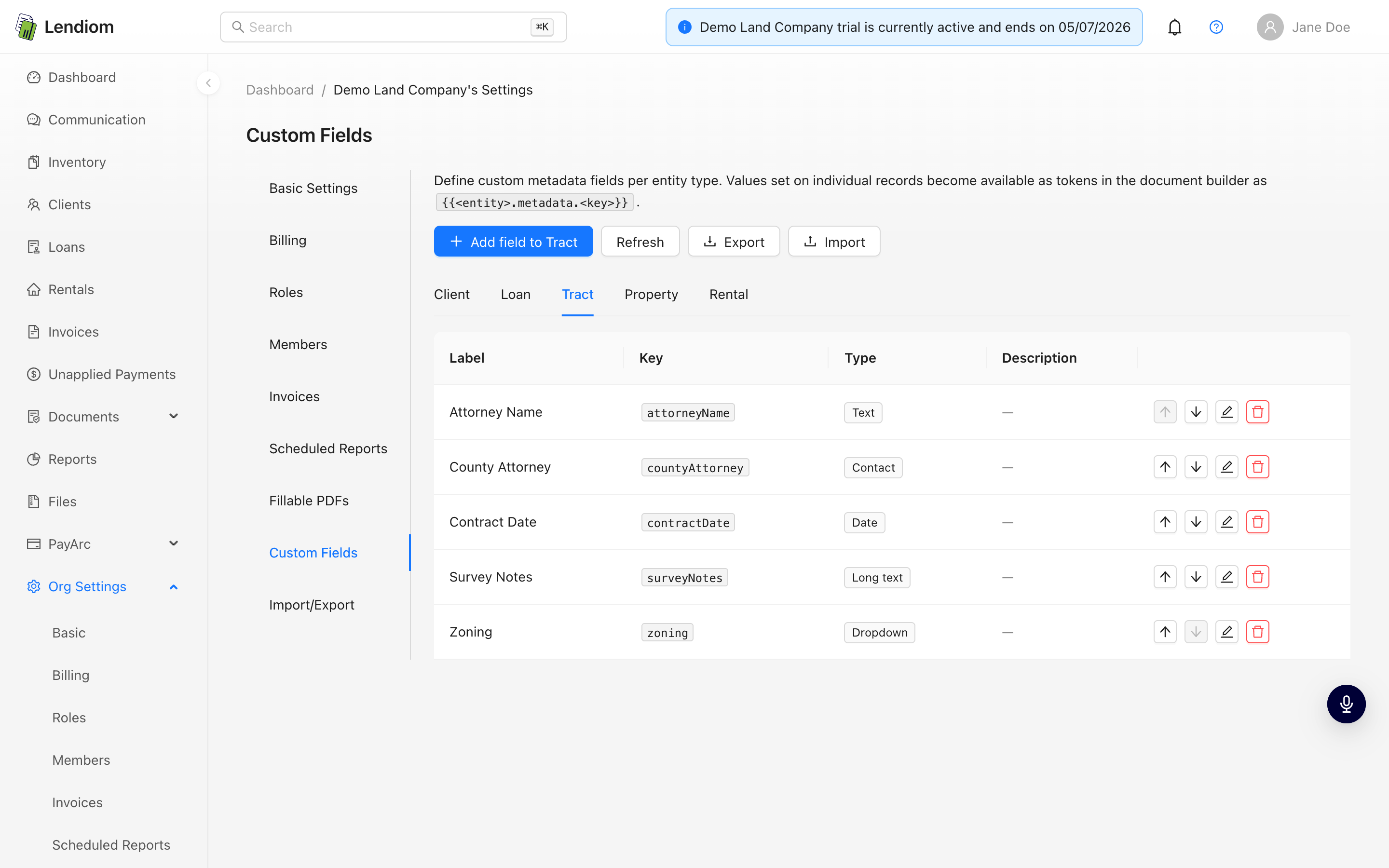
Click Add field to Tract. The button follows whichever tab you're on.
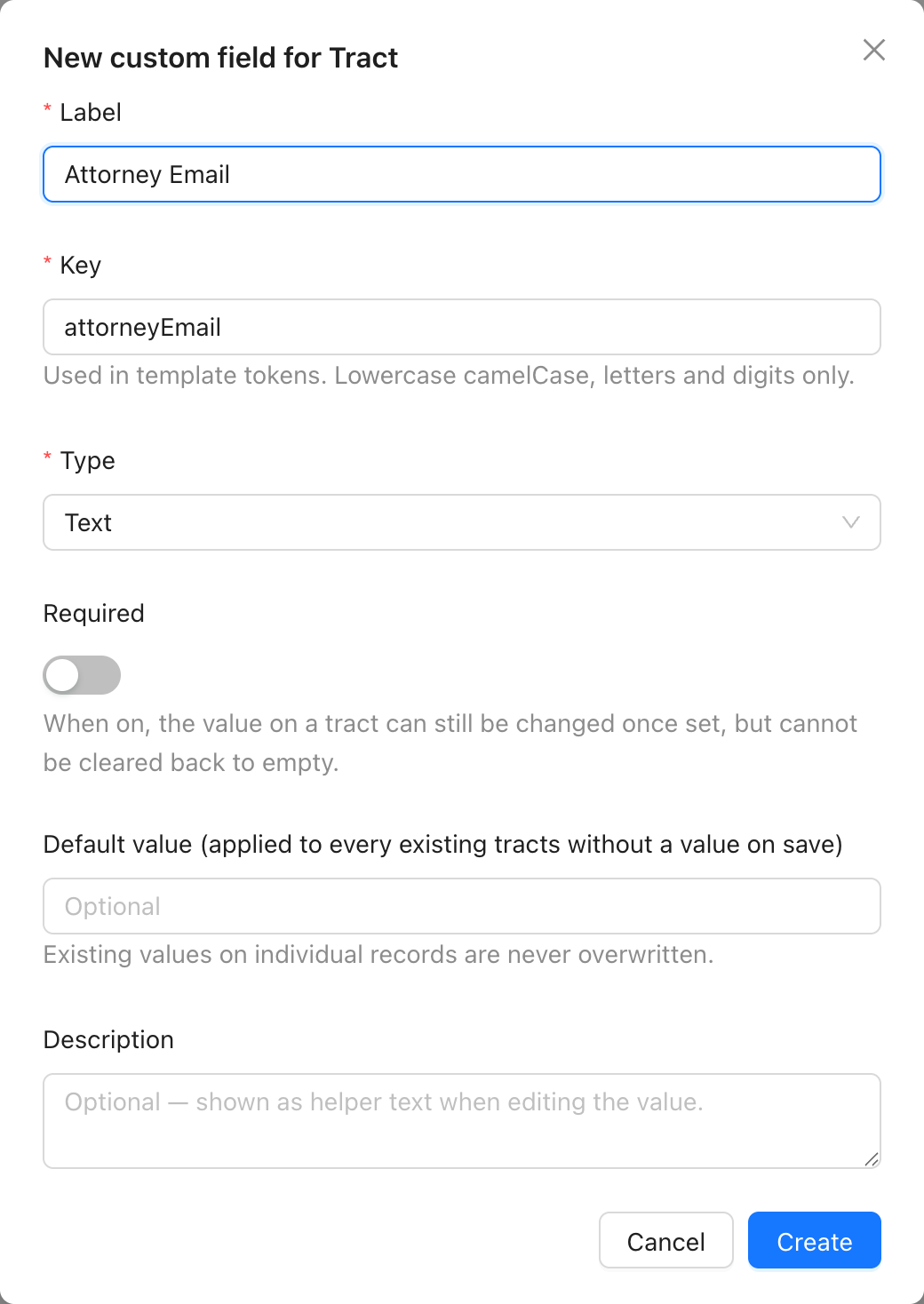
Fill in:
- Label is what people see, like "Attorney Email".
- Key is how the field gets referenced in documents. We suggest one from the label and you can change it while you're creating the field. You can't change it later, because your existing documents point at it.
- Type decides what kind of value it holds. The list is below.
- Required means the value can still be changed but can't be emptied once it's set. Required fields need a default so your existing records don't end up invalid.
- Default value is optional. New records get it automatically, and we backfill it onto existing records that don't have a value yet. Anything that already has a value is left alone.
- Description is optional helper text that shows up as a tooltip when someone fills the field in.
Field types
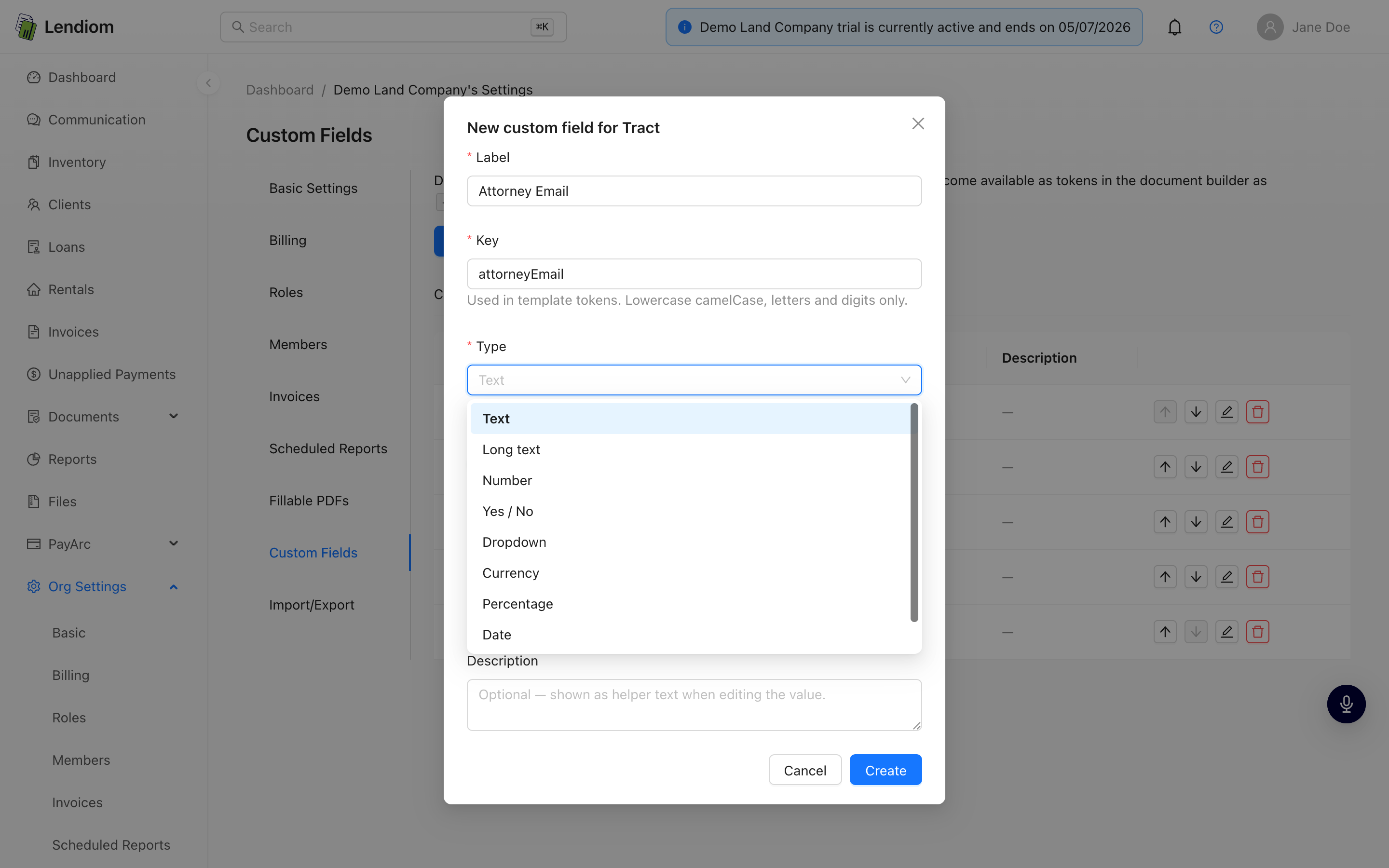
| Type | Use it for |
|---|---|
| Text | Short single-line values |
| Long text | Notes and anything multi-line |
| Number | Plain numbers |
| Yes / No | A simple toggle |
| Dropdown | A fixed list of choices you define |
| Currency | Money, formatted with a $ |
| Percentage | Rates and percentages |
| Date | Calendar dates |
| Contact | A person: name, email, phone, and address together |
Contact is the one worth pointing out. It holds four values under a single field, and each one can be referenced separately in a document. That's handy when you want the attorney's name in the body of a letter but their email on the CC line.
Reordering, importing, and exporting
The arrows on each row change the order fields show up in, both on the record and in the document builder's field list.
Export downloads all of your definitions to a file and Import loads them back in. It's the fastest way to copy a set of fields into another organization, or to grab a backup before you start changing things.
Step 2: Set values on a record
Open any client, loan, property, tract, or rental. The Custom Fields card shows what's filled in, with a count. Empty fields hide behind Show empty so the card doesn't take over the page.

There are two ways to change something.
To change one value, click it right on the card, type, and press Enter. It saves immediately and only touches that field.

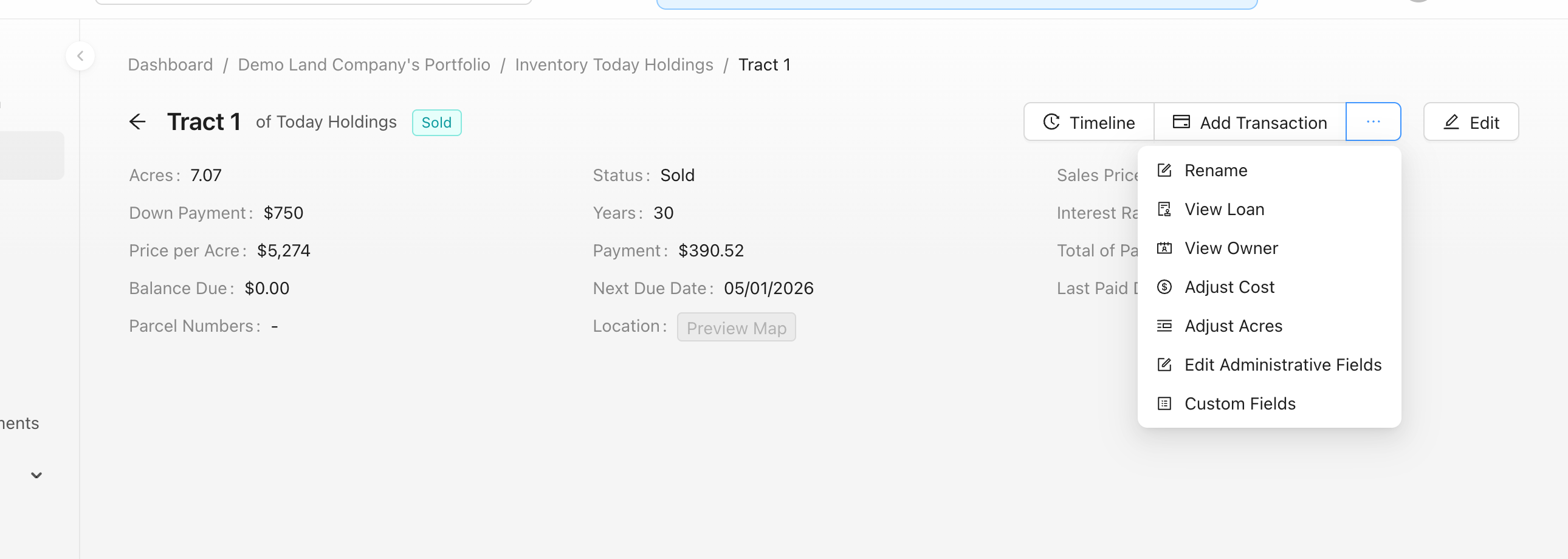
To fill in several at once, open the record's actions menu and pick Custom Fields. It's in the same spot on every kind of record, so you don't have to hunt for it depending on which page you're on. The Edit all button on the card opens the same window.
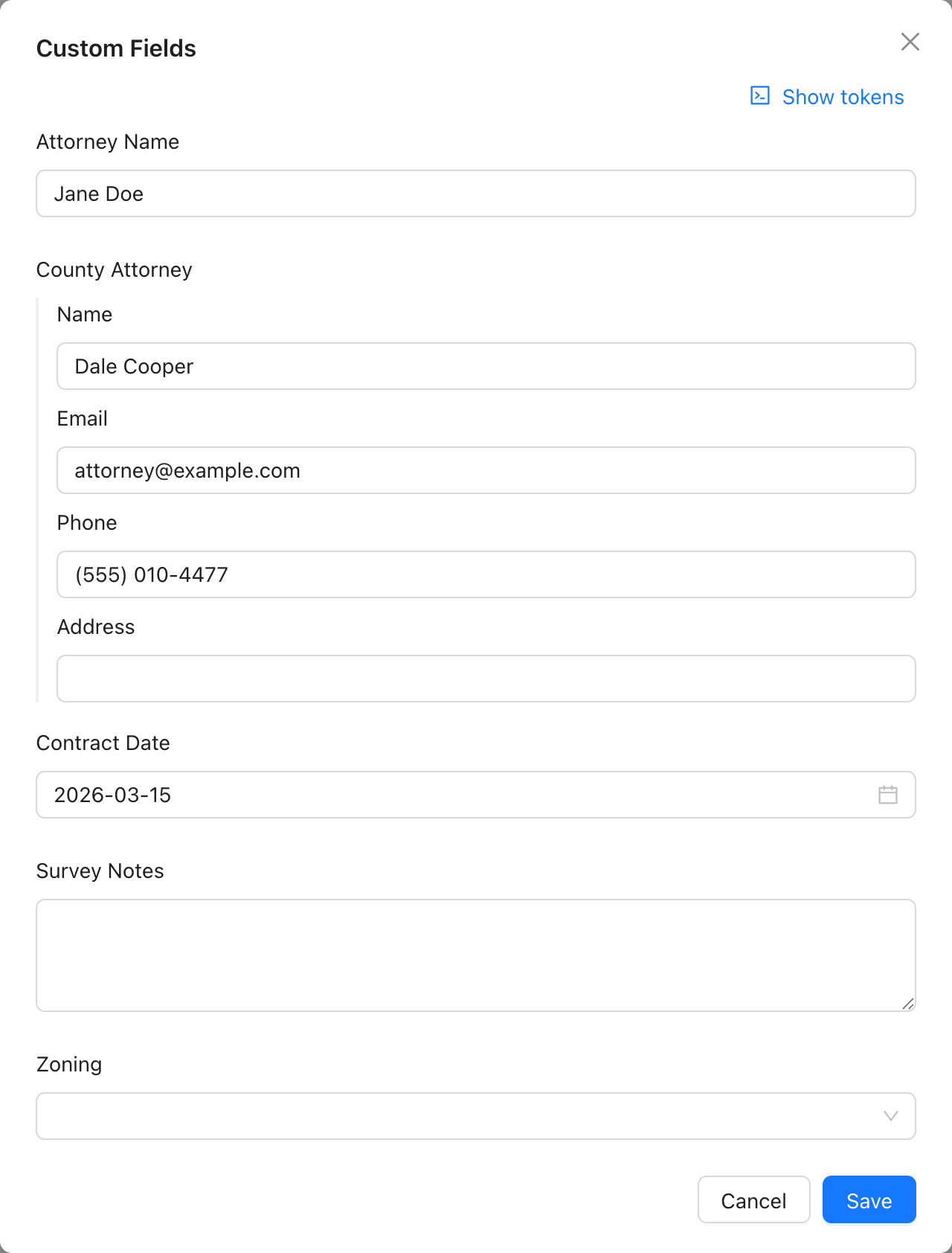
Hit Save when you're done. Cancel throws away everything you changed in that window.
Contact fields are always edited in this window instead of on the card, since they hold four values at once.
Step 3: Use them in documents
Your custom fields turn into document tokens as soon as you define them. There's nothing to publish.
In a template's editor, open Select a data field and expand the record you want. Each one has a Custom Fields entry with your organization's fields under it. Contact fields expand one more level so you can grab the name, email, phone, or address on its own.
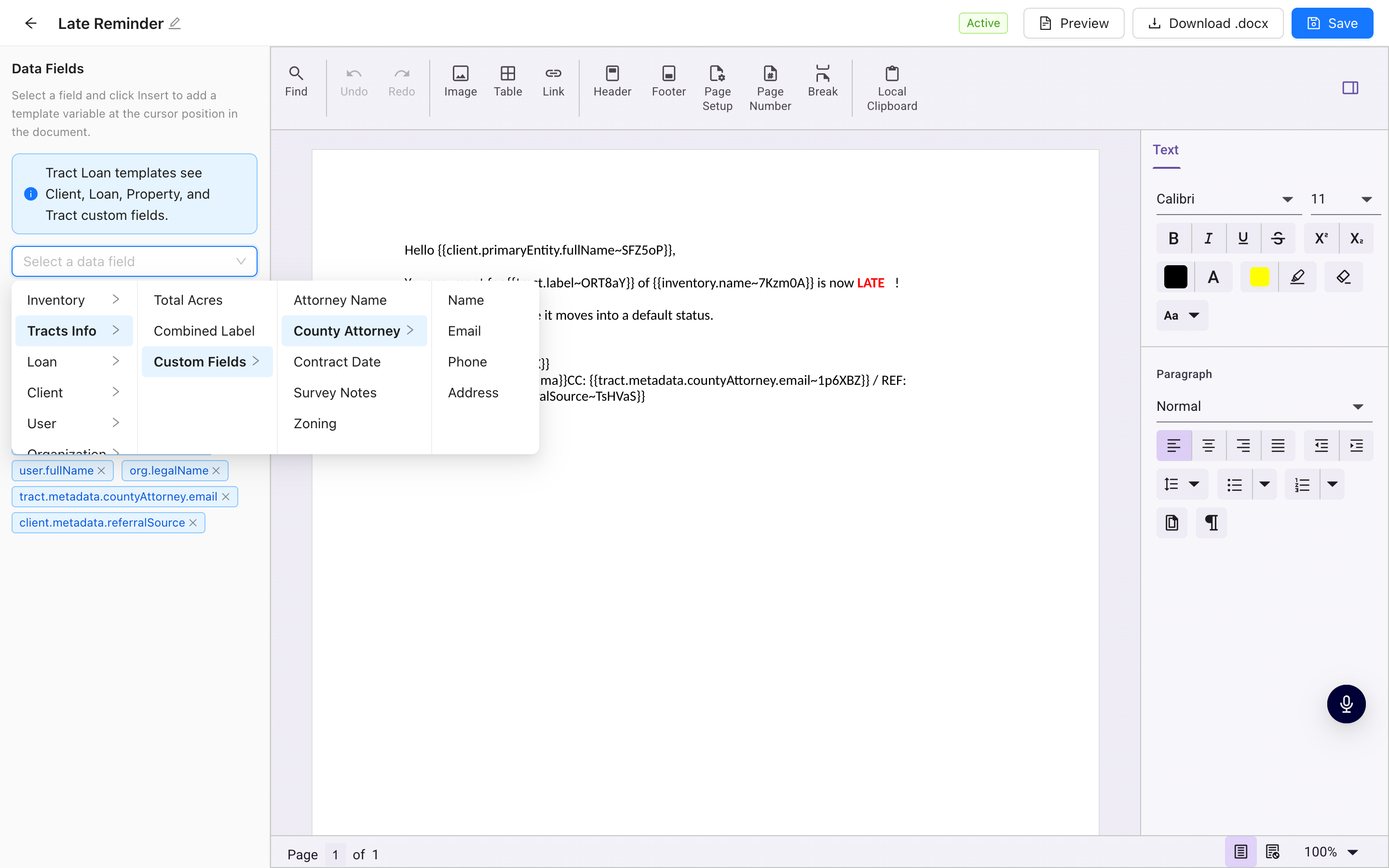
Pick a field and click Insert at Cursor to drop it in. When you generate the document, each token gets replaced with that record's value. If the record doesn't have a value, the token comes out blank.
Which fields a template can see
A template only reaches the records it's built for. The editor tells you which ones at the top of the field list:
| Template type | Can use custom fields from |
|---|---|
| Client | Client |
| Cash Loan | Client, Loan |
| Tract Loan | Client, Loan, Property, Tract |
| Tract | Property, Tract |
| Rental | Rental |
So if you need a tract's custom fields in a letter, build it as a Tract Loan or Tract template instead of a Client one.
Finding a token's exact name
If you're writing a .docx outside of Lendiom and uploading it, you need the full token name. Open the custom fields editor on any record and click Show tokens. Every field shows its exact token, and clicking one copies it.
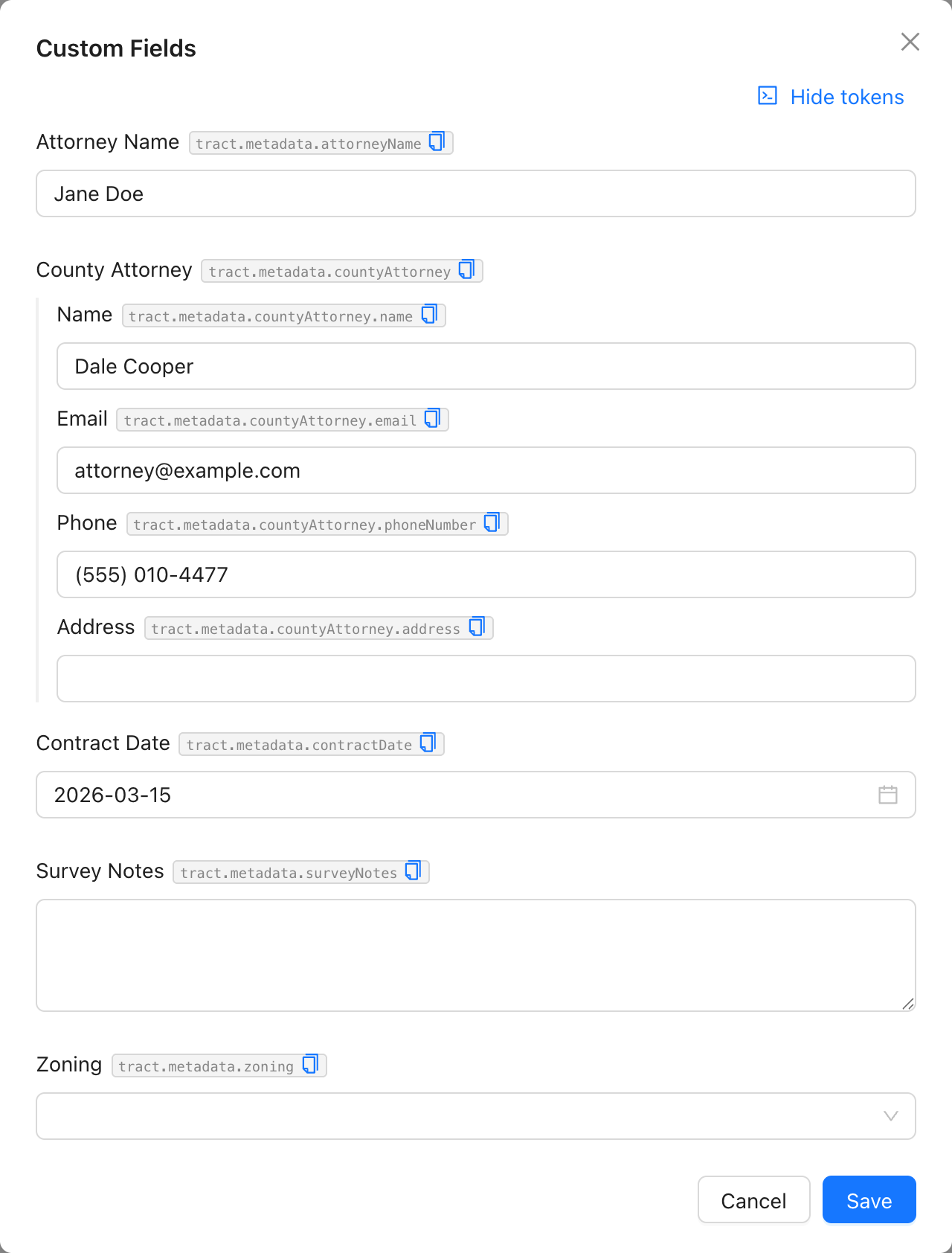
This is also how you get contact sub-fields right. The Phone box is stored as phoneNumber , so the token is tract.metadata.countyAttorney.phoneNumber , not .phone .
Things worth knowing
Changing a field later. Rename the label, change the type, or edit the choices in a dropdown whenever you want. The key stays put so your existing documents keep working. If you change the type and the current default doesn't make sense anymore, say a text default on a field you just switched to Currency, we'll ask you to set or clear the default in the same change.
Deleting a field clears its values off every record in your organization, and any document pointing at it comes out blank from then on. We warn you first and tell you how many templates use it.
Tract Loans with more than one tract. A tract loan can cover several tracts, but a document only has one tract.metadata to pull from. We use the first tract on the loan that actually has a value, and we check each field separately. So if tract 1 has the attorney and tract 2 has the contract date, you get both. If two tracts hold genuinely different values for the same field, you only get the first one.
Permissions. Editing values takes update permission on that kind of record, so someone with view-only access sees the values but no edit controls. Creating and changing the field definitions themselves happens in Org Settings.