
Understanding Your Dashboard
The dashboard is the first page you land on after choosing an organization. It's split into tabs, and the Overview tab holds the cards most people check every morning. This page explains what each number actually counts, so you aren't guessing whether a total includes pending money, failed payments, or rentals.
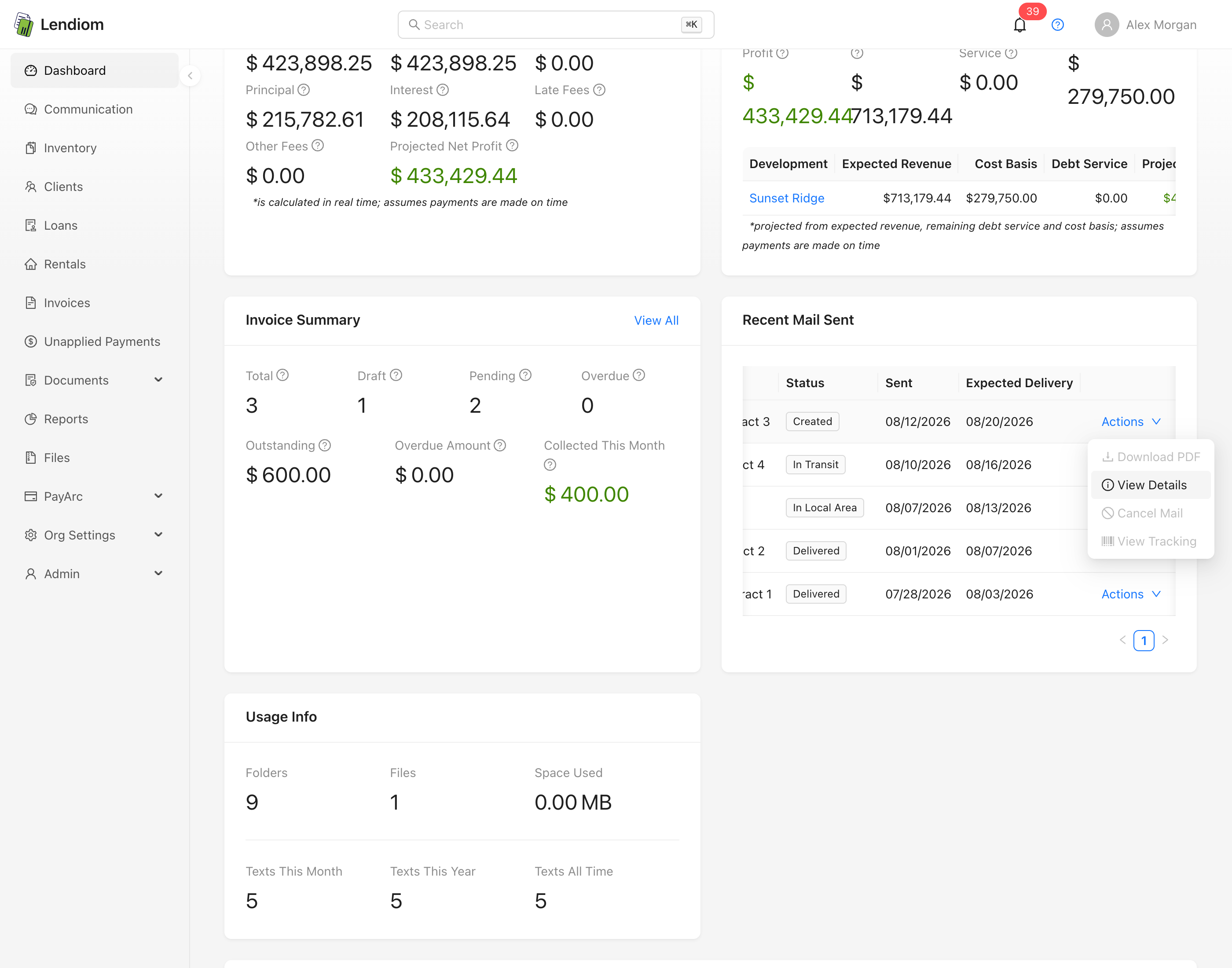
The tabs
| Tab | What it shows | What it requires |
|---|---|---|
| Overview | The cards below, each gated individually | Nothing |
| Late | Loans in Late, In Default, or Defaulted status, with days late, payments behind, and payoff balance | loan Read |
| Property Tax | Every inventory's property tax years; expand a year for its tract rows, each with Remind, Record Payment and Void Property Tax in its actions menu | inventory::propertyTax Read |
| Portfolio | Per-tract sales price, cost, gross profit, remaining principal, and averages; every column sorts, and the Inventory and Status columns filter | loan Read |
| Invoice A/R Aging | Invoices bucketed Current, 1-30, 31-60, 61-90, and 90+ days overdue, plus an Excel export | invoice Read. Hidden without it |
| Client Change Requests | Portal change requests; the badge counts pending ones | client Update |
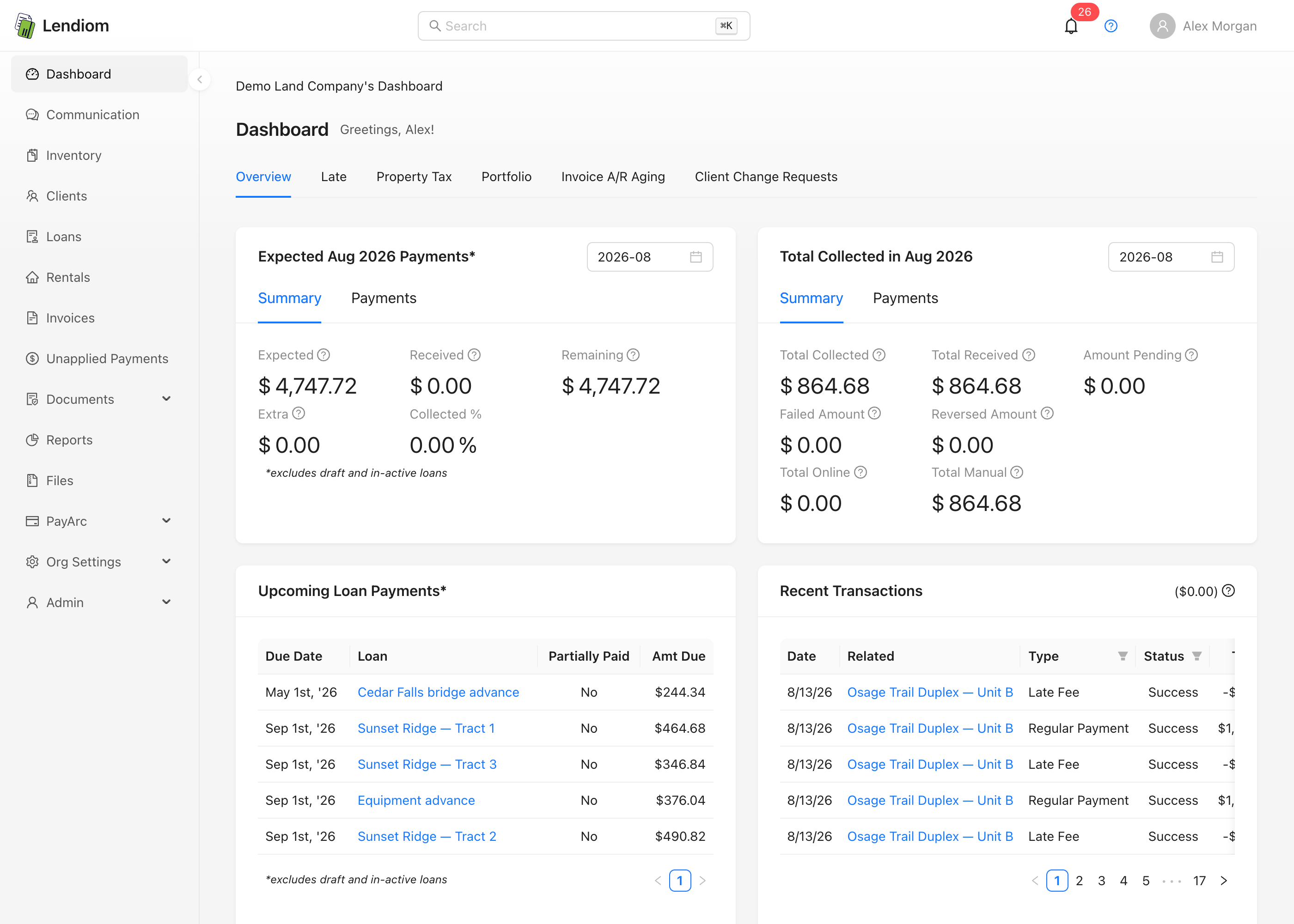
Expected Payments
The title carries the month you picked, and the footnote reads excludes draft and in-active loans. Concretely, the card ignores loans in Draft, Inactive, Repossessed, Paid Off, Canceled, and Refinanced status. See Loan Status.
It reads the payment schedule, not transactions. Every scheduled payment whose due date falls inside the selected month is counted once.
| Statistic | What it counts |
|---|---|
| Expected | The sum of the scheduled payment amounts due that month |
| Received | The sum of what has been applied to those payments |
| Remaining | Per payment, the amount still owed, floored at zero, then summed |
| Extra | Per payment, anything received beyond the scheduled amount, summed |
| Collected % | Received divided by Expected |
| Debt Service | Development loan payments due that month, counted only through each loan's payoff date |
| Expected Net | Expected less Debt Service |
Debt Service and Expected Net appear only when the debt service figure is non-zero, which requires the Deal Analysis add-on and a development loan payment due that month. Without the add-on both stay hidden.
The Payments tab lists the individual scheduled payments, five per page, with Due Date, Item, Fully Paid, Late, and Balance Due. Fully Paid and Late each have a Yes/No filter. With the Rentals add-on on, rental payments are folded in alongside loan payments.
Expected Payments answers "what was on the schedule this month". Total Collected answers "what money actually moved this month". They won't agree, and they aren't supposed to.
Total Collected
Also month-scoped, with its own month selector. This card reads transactions from three places: loan transactions, invoice transactions, and, only with the Rentals add-on enabled, rental transactions. Invoice rows are limited to payments; refunds, adjustments, and write-offs are skipped so they can't inflate the totals. Negative-total transactions are skipped.
| Statistic | What it counts |
|---|---|
| Total Collected | Successful and pending transaction totals, fees included |
| Total Received | The same transactions, net of processing fees |
| Amount Pending | Pending transactions only |
| Failed Amount | Failed transactions, such as insufficient funds or a bank rejection |
| Reversed Amount | Reversed transactions |
| Total Online | Successful and pending transactions run through a payment processor |
| Total Manual | Successful and pending transactions with no processor |
Online plus Manual equals Total Collected. Failed and Reversed sit outside that total.
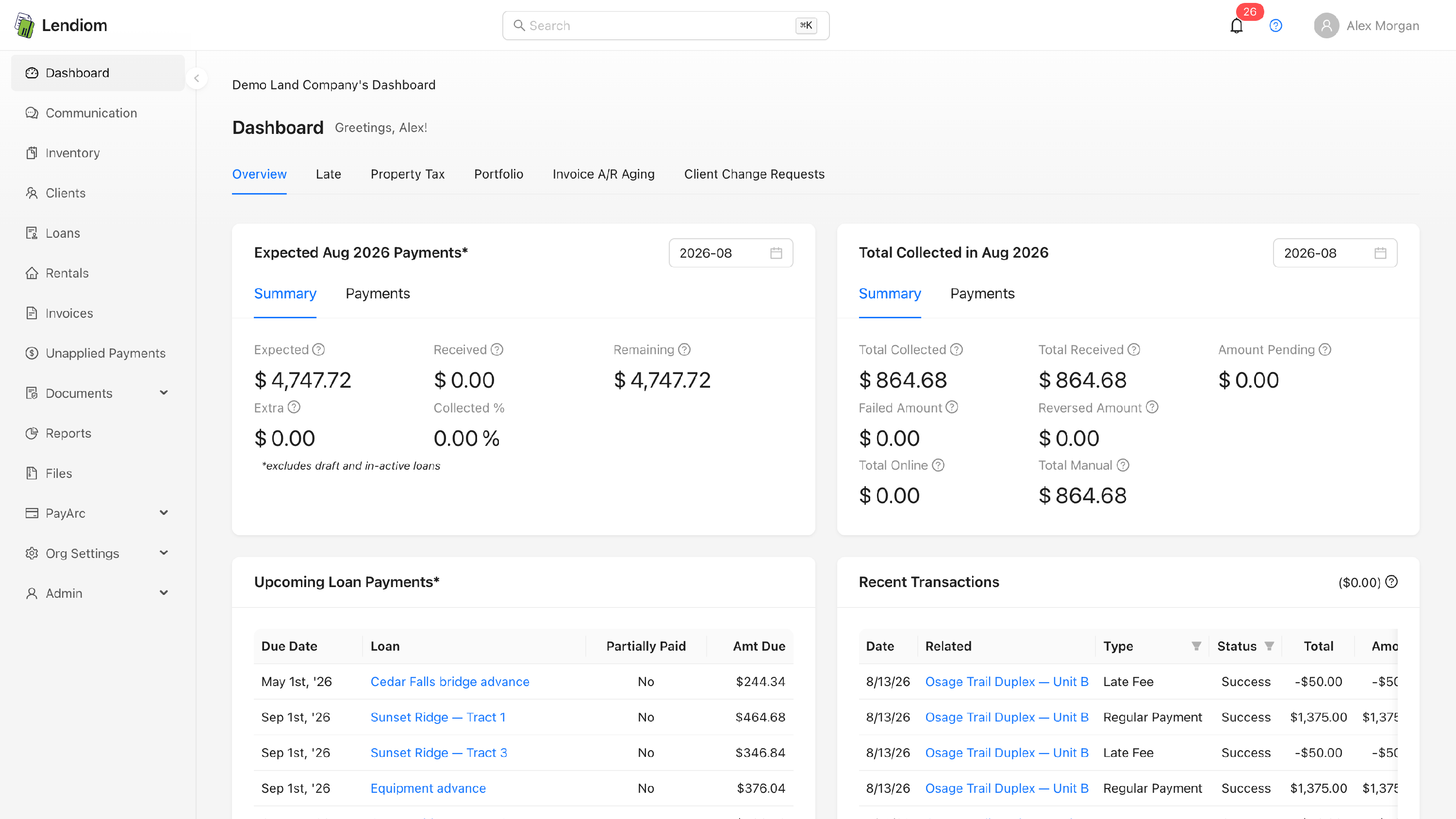
Upcoming Loan Payments
One row per active loan, showing only that loan's next due payment, sorted by due date. Same status exclusions as Expected Payments. A loan with no payment schedule doesn't appear. Amount Due is the scheduled payment less what has been received against it.
Recent Transactions
The five most recent transactions across loans, rentals, and invoices, merged and newest first. Type and Status are both filterable, and the Type filter is grouped so you can pick individual loan, rental, or invoice types. The figure in the card header is the total of every pending transaction in the organization, not just the current page.
Total is what the buyer paid including fees; Amount is that payment minus processing fees.
Active Loan Balances
A live roll-up across active loans only. The footnote, is calculated in real time; assumes payments are made on time, matters: the interest figure is a projection, not a posted balance.
| Statistic | What it counts |
|---|---|
| Principal | The sum of outstanding principal balances |
| Interest | Scheduled interest not yet accumulated, floored at zero, plus interest already accrued on the balance |
| Late Fees | Unpaid late fees currently due |
| Other Fees | Unpaid other fees |
| Total Fees | Late Fees plus Other Fees |
| Total Balance | Principal plus Interest |
| Total | Total Balance plus Total Fees |
When your role has inventory::dealAnalysis Read, a Projected Net Profit statistic joins this card. It's supplemental: if that lookup fails, the rest of the card still renders.
The Visible checkbox in the card header hides the numbers. That preference is stored in your browser, so it follows the browser and not your account.
Deal Profitability
Four statistics plus a per-development table. Expected Revenue is the total expected over the life of every tract across every development. Remaining Debt Service is everything still owed on development loans through each loan's payoff date. Cost Basis is acquisition plus recorded development costs, less offsets. Projected Net Profit is expected revenue less the other two. The same columns repeat per development, sortable by projected net. Like Active Loan Balances, it assumes payments arrive on time.
Invoice Summary
Cancelled invoices are excluded from every count here.
| Statistic | What it counts |
|---|---|
| Total | All non-cancelled invoices |
| Draft | Invoices still in draft |
| Pending | Sent, viewed, partially paid, or payment pending |
| Overdue | Invoices in overdue status |
| Outstanding | Balance due across the pending and overdue invoices |
| Overdue Amount | Balance due on overdue invoices only |
| Collected This Month | Successful invoice payments recorded since the first of the current month |
Below the statistics, the five most overdue invoices are listed with their days overdue.
Recent Mail Sent
Physical mail your organization has sent, five per page and paginated against the server, so you can page back through the full history. Each row shows the client, the entity addressed, the description, delivery status, sent date, and expected delivery date.
The row menu gives you four actions:
- Download PDF: unavailable while the letter is still in Created status or after it has Failed.
- View Details: the full record, including tracking events.
- Cancel Mail: only while the status is still Created and the letter was created less than five minutes ago. After that it's on its way and can't be pulled back.
- View Tracking: opens USPS tracking; needs a tracking number assigned first.
For how letters get created, see Sending a Letter.
Usage Info
Folder count, file count, and storage used in megabytes, then text messages sent this month, this year, and all time. This card has no permission check. Everyone sees it.
Recent Events
Marked Beta, this is the wide feed across the bottom of the Overview tab: 20 events per page, newest first, with the total event count in the header.
| Event | When it appears |
|---|---|
| Tract sold for cash | The tract is Sold with a cash sale, or an unfinanced payment option |
| Tract financed | The tract is Sold with a financed payment option |
| Tract reclaimed | The tract is In Default and has a repossessed or canceled loan |
| Tract added | The tract record was created |
| Development added | The inventory record was created |
| Loan created | The loan record was created |
| Invoice created | A non-draft invoice was created |
| Invoice paid | The invoice was paid |
| Automation sent, skipped, or failed | A document automation job finished in that state |
| Client added | A client was created; prospects excluded |
Deliberate omissions: draft invoices never appear, prospect clients never appear, and an invoice paid inside the window shows only as "paid" rather than twice. A sold tract with neither a cash sale nor a completed payment option is skipped as incomplete data.
The header reads Last 365 (or more) days, and the parenthetical is real. The window runs 365 days back from now, but tracts qualify on when the record was last modified, while the date shown is the cash sale date or the loan's closing date. A tract sold two years ago and edited last week appears with its original sale date.
Recent Events can't be filtered, searched, or narrowed by date. Pagination is the only control. To isolate one kind of activity, use the relevant list page or a report instead.
Why a teammate sees fewer cards
Cards aren't disabled or greyed out when you lack access; they're absent. A narrower role sees a shorter dashboard with no explanation on the page. Here's the mapping.
| Card | Permission | Add-on |
|---|---|---|
| Expected Payments | loan::transactions Read |
Rentals adds rental payments |
| Total Collected | loan::transactions Read |
Rentals adds rental transactions |
| Upcoming Loan Payments | loan Read |
None |
| Recent Transactions | loan::transactions Read |
None |
| Active Loan Balances | loan::transactions Read |
Deal Analysis adds Projected Net Profit |
| Deal Profitability | inventory::dealAnalysis Read |
Deal Analysis required |
| Invoice Summary | invoice Read |
None |
| Recent Mail Sent | client::entities Read |
None |
| Usage Info | None | None |
| Recent Events | client::entities Read |
None |
The loan-backed cards are shown based on loan::transactions Read, but the data behind them is served under loan Read. A role with transaction access and no loan access renders those cards and then fails to load them. Grant both together.
Deal Profitability needs the Deal Analysis add-on and inventory::dealAnalysis Read; turning the add-on off hides it for everyone regardless of role. See Add-Ons and Roles and Permissions.
When a teammate reports a missing card, check the add-on first and the role second. An add-on that is off hides the card organization-wide, which is faster to rule out than auditing one person's permissions.