
Importing Your Existing Portfolio
If you're moving to Lendiom from MoneyLender Professional 3, the import wizard brings your borrowers, loans, payment history, servicing notes, and attachments over in one guided run: export from MoneyLender, upload the files, review how every loan lines up against your existing inventory, then commit.
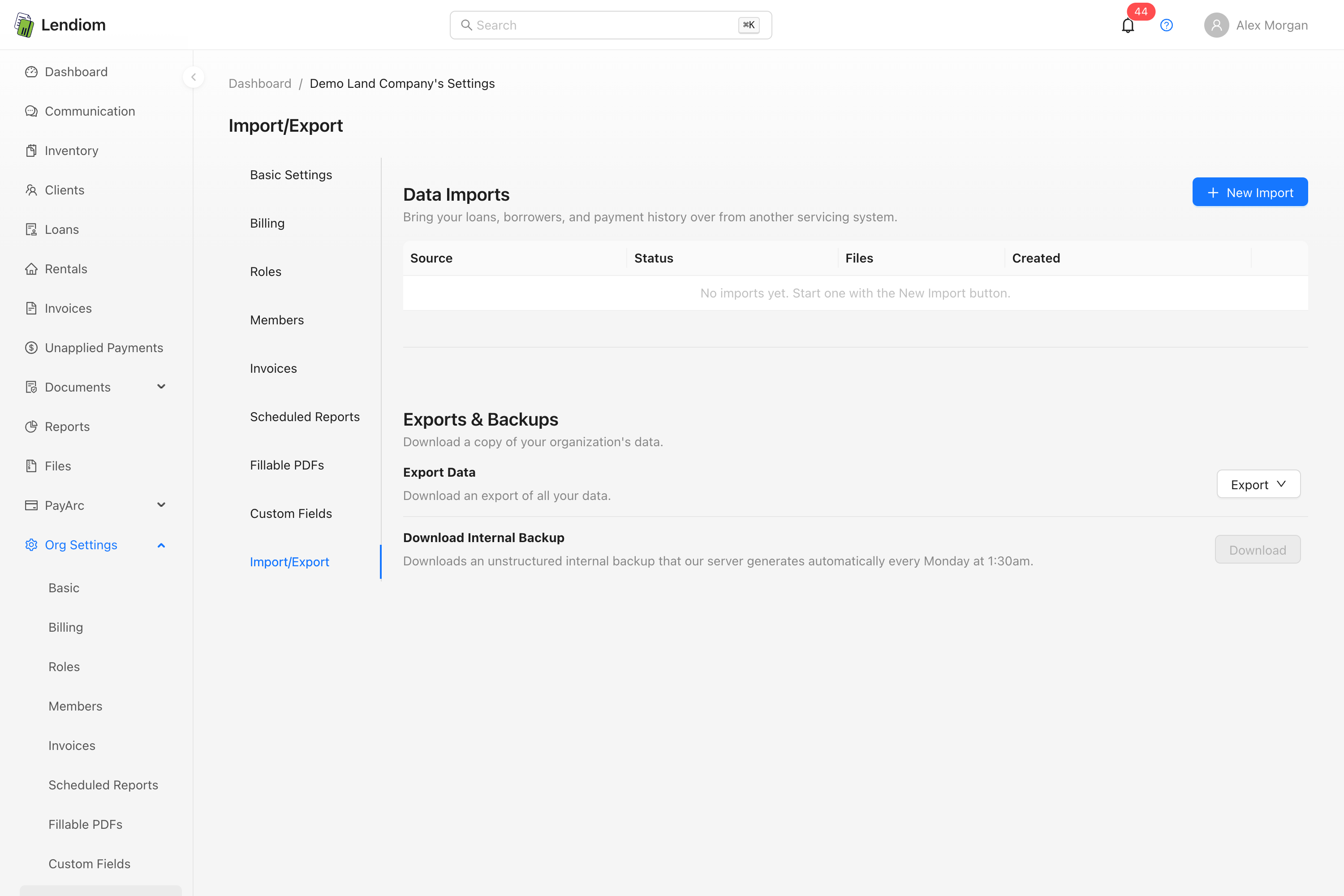
It lives at Org Settings → Import/Export, where each import is its own record. Five steps: Source, Upload, Analyze, Review, Import.
Coming from a spreadsheet, or from software other than MoneyLender? Use the spreadsheet source instead: see Importing Loans from a Spreadsheet. It takes up to five CSV files filled in against Lendiom's own column layout, can create your developments and tracts for you, and brings payment history and property tax years over when you include those files.
Before you start
- Your inventory must already exist in Lendiom. The MoneyLender import matches each loan to a tract you already have. It never creates developments or tracts; the spreadsheet import does.
- You need the
data-importpermission.readopens the tab,createstarts an import and runs the upload, analyze, commit, and resume actions,updatesaves your review decisions, anddeleteremoves an unfinished import. Of the seeded roles, onlyadminholds it. See Roles and Permissions. - One import runs at a time per organization. Starting a second analysis or commit while one is running is refused.
Step 1: Export from MoneyLender and upload
In MoneyLender, choose File → Export Portfolio Data… and pick a folder. MoneyLender writes one CSV per table into it.
Drop every one of those CSVs into the uploader. Keep the original file names. The wizard recognizes files by name and rejects anything that isn't a known MoneyLender table. Each file must be under 200 MB, and uploads run one at a time, so leave the page open until the batch finishes.
The right-hand checklist turns each name green as it stages. Fourteen are required before Analyze the export unlocks: Lender.csv , Borrower.csv , Loan.csv , LoanAccount.csv , LoanTransaction.csv , Payment.csv , LoanAdjustment.csv , LoanInterestSetting.csv , LoanPaymentSetting.csv , LoanLateFeeSetting.csv , LoanLenderSetting.csv , LoanPrincipalSetting.csv , LoanBorrowerSetting.csv , and InventoryItem.csv .
QuickNote.csv (servicing notes), LoanSpecialSetting.csv (forbearance), Attachment.csv , and BinaryBlock.csv are optional. The last two hold your documents; leave them out and your documents stay in MoneyLender while everything else imports.
Choose how much history to bring, too. Full history replay recreates every payment, late fee, and adjustment; a loan that can't be reconciled falls back to balances only and is flagged. Balances only creates each loan from its current balance snapshot with no history in Lendiom. You can change this on the confirmation screen.
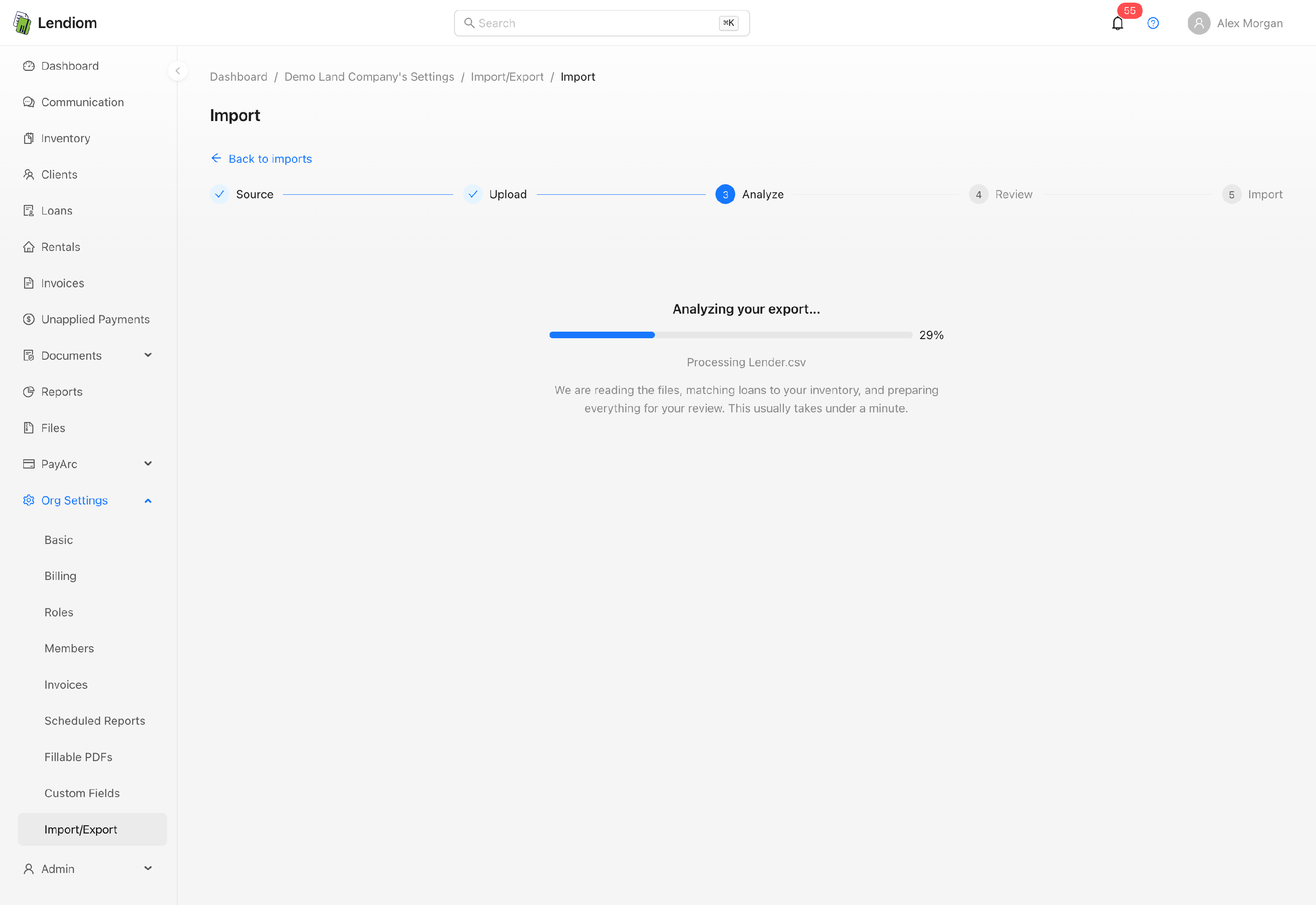
Step 2: Analyze
Analysis runs in the background. It reads the files, parses each MoneyLender account number into a subdivision, tract number, and acreage, matches that against your inventory, groups borrowers, and builds a reviewable plan. It usually takes under a minute, and nothing is written to your organization yet. If it fails, re-running it's safe.
Step 3: Review and adjust the matches
This is where the work is. Nothing has been created yet, and every change autosaves.
Matching & settings
The collapsible panel at the top holds the decisions that apply to the whole import:
- Subdivision aliases. MoneyLender abbreviates development names. Map each abbreviation to the matching Lendiom inventory and click Save & re-run matching. One alias can resolve dozens of unmatched loans at once, and the wizard reports how the count changed.
- Late fee grace period (days). The export doesn't carry this, so you confirm it (1–90). It applies to every imported loan.
- Default late fee. Shown only when your organization has no usable default. Each loan uses its own MoneyLender amount first, then your organization default, then this one; if none resolve, the loan imports with late fees off. See how late fees work.
- Daily interest day-count. Shown only when a loan accrues daily. Actual/365 matches MoneyLender's default.
The Loans tab
Every loan shows its matched inventory and tract, acreage, principal, source status, and a Match confidence tag:
| Tag | Meaning | Blocks the import? |
|---|---|---|
| Exact | Development, tract number, and acreage all matched | No |
| Likely | Matched by name similarity or lot number alone, or the acreage didn't line up | No, confirm it's right |
| Conflict | The tract is already claimed by another loan in this import, or by an existing loan or unavailable tract | Yes |
| Unmatched | No tract could be proposed | Yes |
| Manual | You picked the tract yourself | No |
Three actions sit on each row. Fix match opens a picker for the development and every tract the loan covers. Down payment lets you pick between the amounts MoneyLender recorded in different places, whether the loan record, the payments, the principal settings or the sale notes, or type your own. Skip leaves the loan out. Select several rows to Assign to development…, skip, or unskip in bulk.
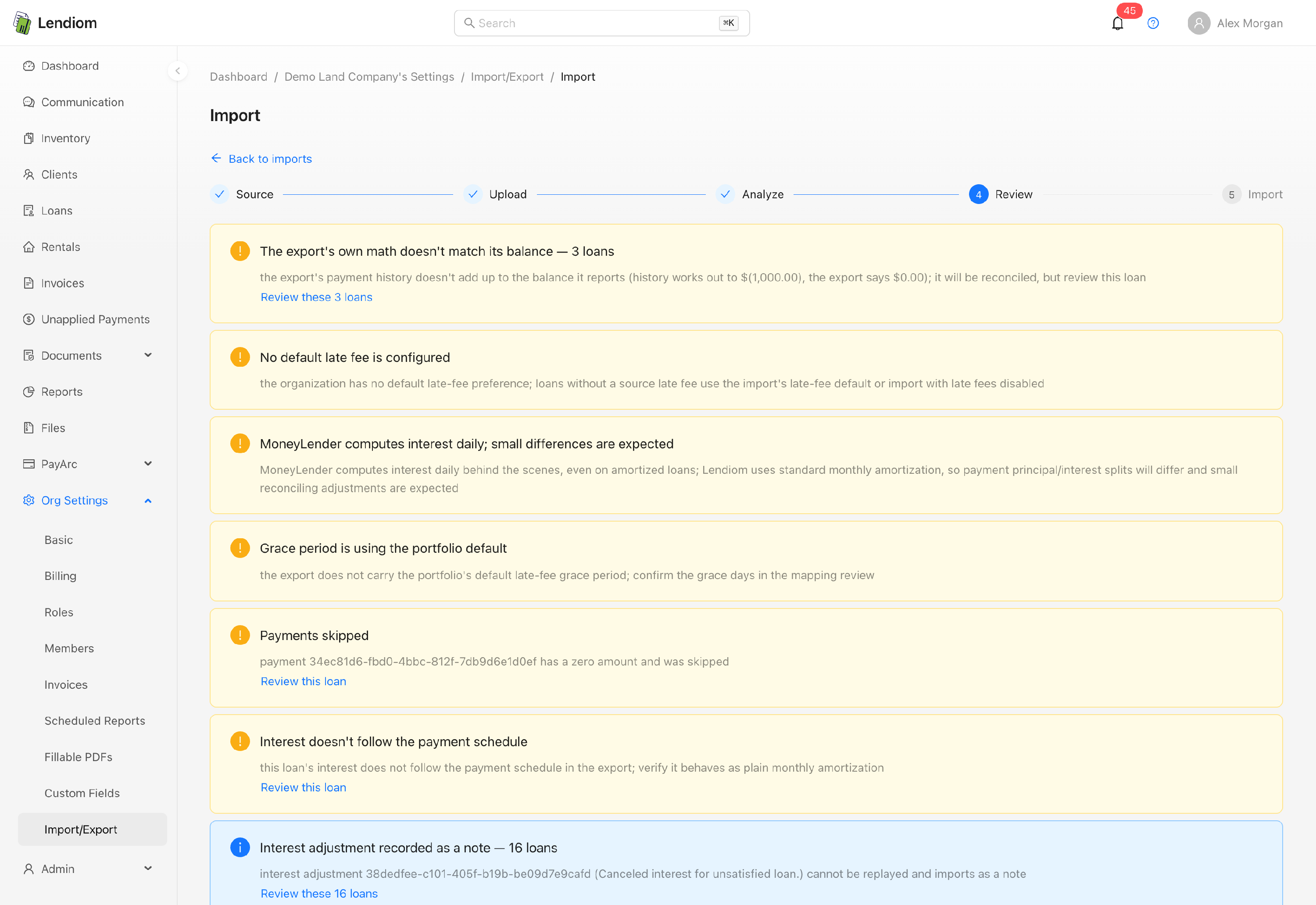
Expand a row for its payment, fee, adjustment, and payoff counts, its term, and every down-payment source side by side. Flags are grouped into one alert per class at the top of the review, and each group links to the loans it affects.
The Borrowers tab
Each borrower gets one of three actions: Create new client, Match existing client (pre-filled when an email matches an existing client), or Skip. Duplicate records from the export are folded together and marked merged, and Skip all unattached & company drops the loan-less and company-only rows at once.
What blocks the import
Continue stays disabled, and the Before you can continue panel links each outstanding item to where it's fixed:
| Blocker | How you clear it |
|---|---|
| Loans that can't be imported automatically | Tick the acknowledgement checkbox, which skips them |
| A loan with an Unmatched or Conflict tract | Fix the match, or skip the loan |
| Grace days not confirmed | Set them in Matching & settings |
| A required default late fee not set | Set it in Matching & settings |
| A borrower set to Match existing with no client chosen | Pick the client, or change the action |
| A subdivision alias row with no inventory | Pick the inventory, or remove the row |
Loans the engine can't reproduce, such as an unsupported loan type or configuration, variable rates, an unrecognized lifecycle state, or an unrecognized payment type, appear in their own red panel with the reason for each. They can only be skipped; everything else still imports.
Committing
The confirmation screen totals what is about to happen: clients to create, match, and skip; loans by active, paid off, terminated, skipped, and unsupported; and the transaction and note counts. Re-confirm the history choice, click Start the import, and type IMPORT .
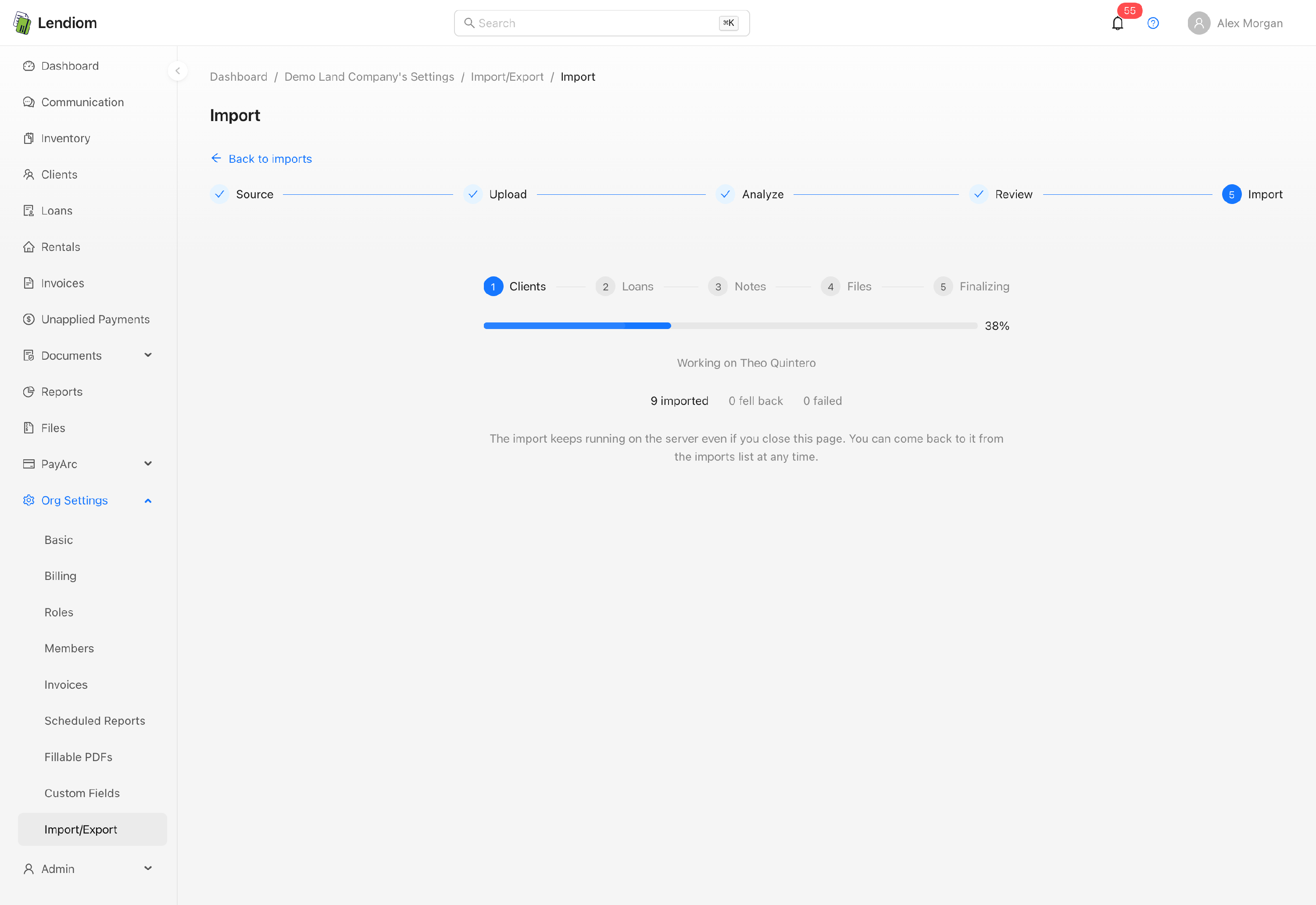
The run works through five stages, Clients, Loans, Notes, Files and Finalizing, and keeps going on the server even if you close the page. Lendiom sends an in-app notification and an email when it finishes. If the server restarts mid-run, the import parks as interrupted with a Resume the import button; nothing already imported is lost or duplicated.
Committing creates real clients and loans in your organization. There's no one-click undo. Get the review right first.
What gets created
| Item | What lands in Lendiom |
|---|---|
| Clients | One per borrower, with name, email, phone numbers, addresses, birth date, and tax ID. A company borrower becomes a company client; co-borrowers become either their own client or another person on the primary's client. |
| Loans | A tract loan labeled with the MoneyLender account number, attached to the matched tract and client, carrying the source terms, rate, payment, escrow rider, and late fee tier. Paid-off loans are marked paid off; terminated contracts are canceled. |
| Transactions | On a full history replay, every payment, down payment, late fee, waive, adjustment, and payoff, in order. Customer-facing letters and welcome texts are suppressed throughout. |
| Notes | Each QuickNote becomes a loan note plus a timeline entry dated to the original note. Clients and loans also get an origin note naming the MoneyLender source record. |
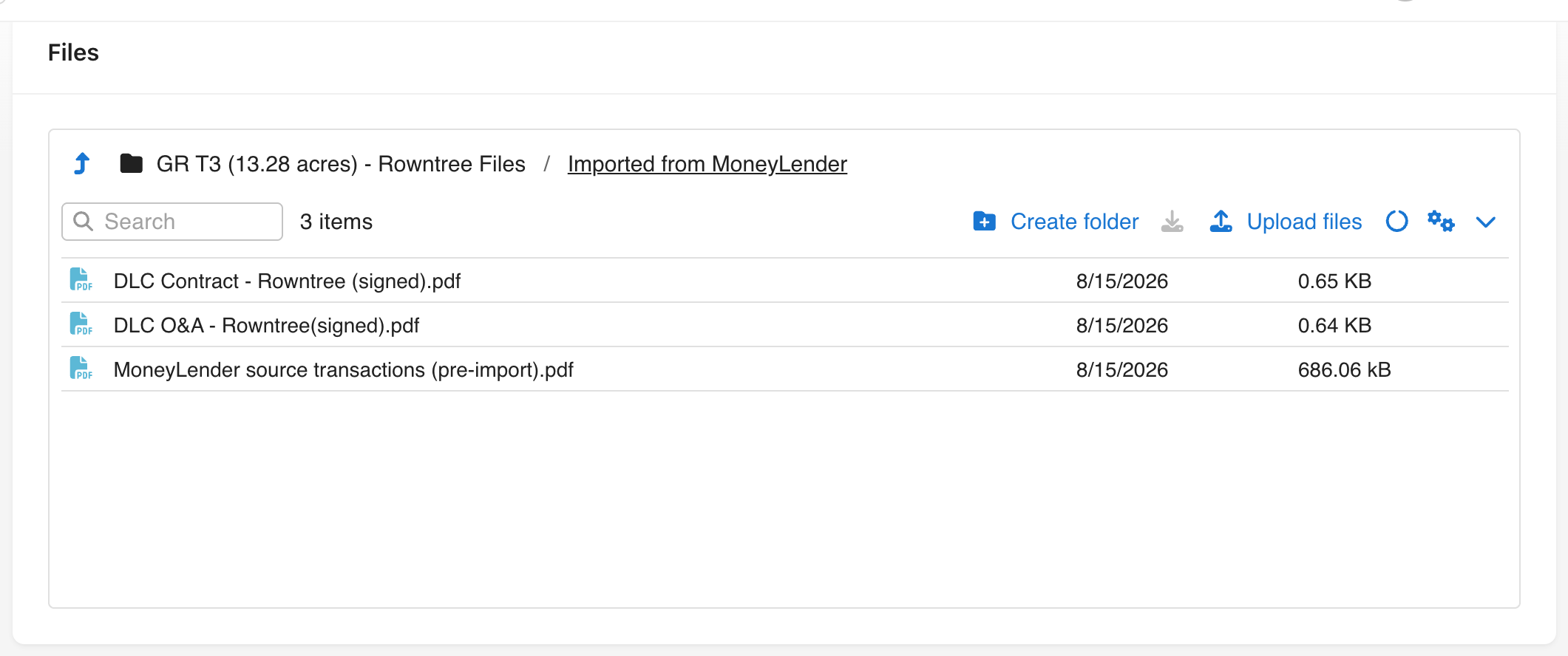
| Files | Attachments land in an Imported from MoneyLender folder on the loan. |
Each replayed payment keeps the principal and interest split MoneyLender recorded for it, so balances land where MoneyLender had them. MoneyLender applies every payment to accrued interest before any principal, which is why a borrower who ran behind shows little or no principal paid; payments recorded after the import follow Lendiom's standard monthly amortization instead.
The MoneyLender record on every loan
Every imported loan gets a PDF named MoneyLender source transactions (pre-import).pdf in its Imported from MoneyLender folder, listing the loan's MoneyLender payments (date, applied date, amount, principal, interest, escrow, fees, balance, type, returned flag, description) and its full ledger, oldest first.
It's a historical record of the data as it existed in MoneyLender, not a live ledger. Balances-only loans get one too, so the pre-import history is available even where the transactions weren't replayed. Future-dated rows are omitted, with a count at the bottom, because MoneyLender pre-posts its projected finance charges and late fees years ahead.
After the import
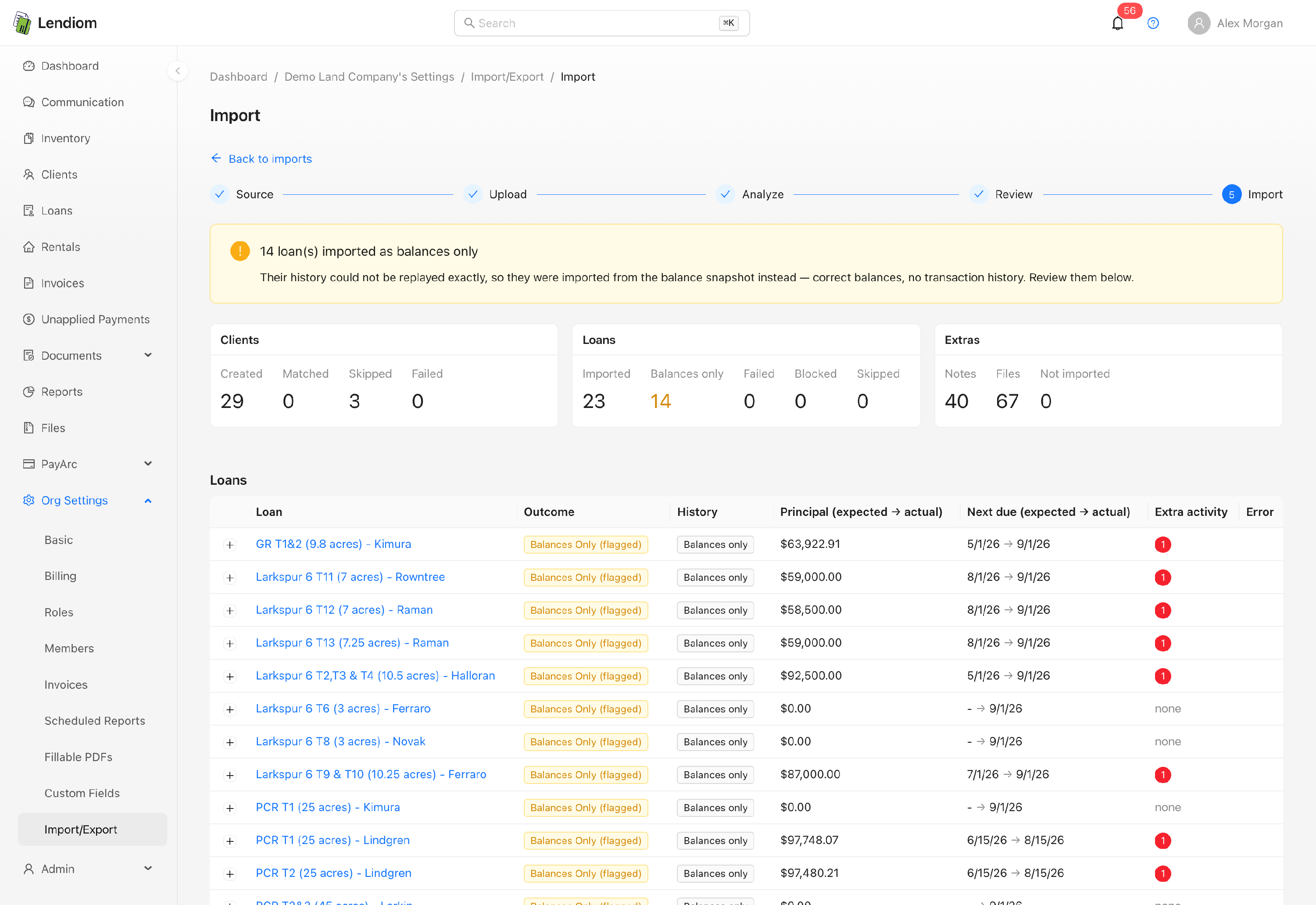
The results screen lists every loan with its outcome, Imported, Balances Only (flagged), Failed, Blocked, or Skipped, plus the client, note, and file ledgers and a Download results (CSV) button. Loan names link into the app.
Work through this before you call the migration done:
- Review every loan flagged Balances Only. Their balances are correct, but no transaction history came over.
- Check the rows where expected and actual principal differ, or where Extra activity shows a count.
- Spot-check a few loans: amortization schedule, balances, next due date, late fees, and escrow.
- Turn on automated communication where you want it. Imported loans arrive with automated messaging off. See the communication portal guide.
- Re-invite your borrowers to Lendiom Pay. Card and bank details never move over; borrowers re-enroll their own payment methods. See setting up online payments.
Loan document automation pauses automatically for the duration of the import and is restored when it finishes, so the bulk status changes don't fire your automations.
A completed import stays in the list permanently as the record of what was brought in and can't be deleted. An import you never committed can be deleted, which removes the uploaded export files only.