
Bringing Your Portfolio in by Hand
Some portfolios arrive at Lendiom without anything you can put in a file: a filing cabinet, a servicing platform that won't hand you its tables, or records too inconsistent to line up in columns. If you can get your loans into a spreadsheet, stop here and use Importing Loans from a Spreadsheet instead; it's a fraction of the work.
What the import wizard does and does not do
Lendiom's importer lives under Organization Settings → Import/Export and reads two kinds of source.
| Source | What is true |
|---|---|
| Spreadsheet (CSV files) | Up to five files (inventory.csv, clients.csv, loans.csv, and the optional transactions.csv and property_taxes.csv) filled in against Lendiom's own column layout, with a downloadable template for each. Creates developments, tracts, clients, and loans. Loans come in with their current balances, or with their full payment history replayed when you include transactions.csv; property_taxes.csv records the tax years on the financed tracts |
| MoneyLender Professional 3 | The named CSV tables that export produces (Loan.csv, Borrower.csv, LoanTransaction.csv, and so on). Creates clients, entities, and loans, and on the full-replay setting the payment, fee, and adjustment history too. Never creates inventory; each loan is matched to a tract you already have |
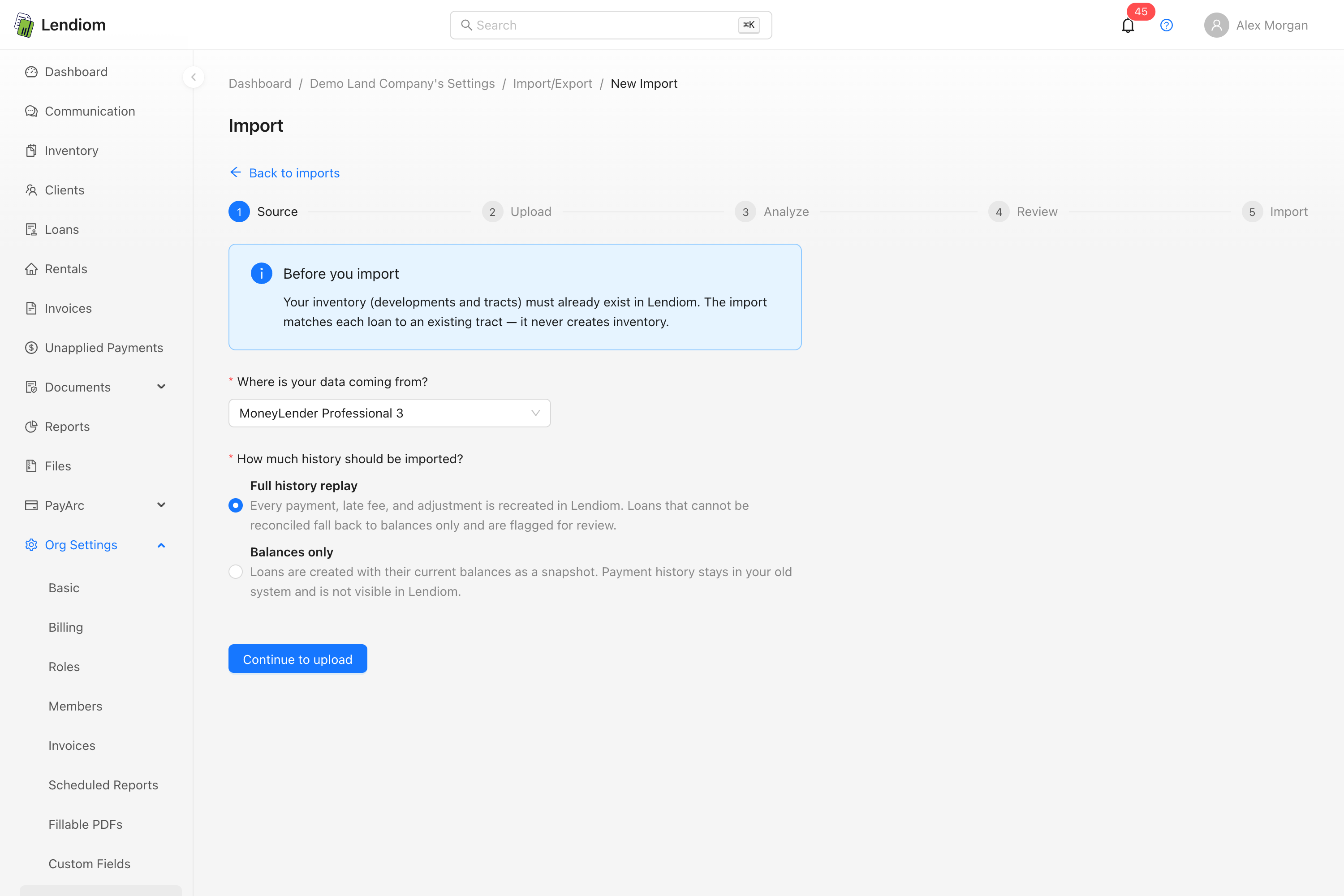
Neither source reads a spreadsheet in your own layout. The spreadsheet import wants its files under its own column names, and the MoneyLender import wants MoneyLender's tables. If you can rearrange your columns to match the spreadsheet template, do that. If your records won't fit any file at all, everything below is your path.
Gather this before you start
Open one loan at a time and confirm you have every row below. Chasing a missing figure halfway through the wizard is how bad amortization schedules get saved.
Per property
| Item | Why |
|---|---|
| Property name, category, and mailing address | The inventory record everything else attaches to |
| Tract label, number, and acreage | Required on every tract |
| Parcel number(s) and county | Property taxes and generated documents |
| Development cost, total or per acre | Tract costing |
Per client
| Item | Why |
|---|---|
| Legal first, middle, and last name of everyone on the contract | Each becomes an entity under the client |
| Mailing address | Required before an address can be verified or a 1098 filed |
| Email address and a cell phone number | Both required before Lendiom Pay can be sent |
| Taxpayer identification number and its type (SSN, ITIN, or EIN) | Required for 1098 filing |
| Preferred language, English or Spanish | Drives every automated message |
Per loan
| Item | Applies to |
|---|---|
| Original sales price, down payment amount, and down payment date | Every loan |
| Interest rate, term length, payment frequency, and first payment date | Every loan |
| Closing date and late fee configuration | Every loan |
| Principal Paid and Interest Paid to date | Every pre-existing loan |
| Interest Paid YTD | Every pre-existing loan. This is the figure Lendiom uses on a 1098 |
| Last Full Payment Number | Loans where interest follows the payment schedule |
| Unpaid Interest Balance and Last Payment Date | Loans where interest accrues daily, and interest-only loans |
| Next Payment Date | Every pre-existing loan |
The partial-payment rule flips depending on the interest schedule. When interest follows the payment schedule, exclude partial payments from Principal Paid and Interest Paid and enter them as transactions after the loan exists. When interest accrues daily or the loan is interest-only, include them. Getting this backwards produces a schedule that looks plausible and is wrong. Creating a Pre-Existing Loan explains the math behind both.
The order
Work top to bottom. Each step depends on the one above it.
1. Set up the organization
Your organization holds everything else, and nothing else can be created until the setup wizard finishes. Follow Setting Up Your Lendiom Business, then fill in the business name, contact number, website, email, and mailing address under Organization Settings → Basic Settings. Generated documents and tax forms pull from these. If several people will be doing data entry, add them now with the right roles.
2. Build the inventory
Create one inventory record per development, subdivision, or standalone property at Inventory → New. You pick a category (Land, Residential, Multifamily, Commercial, or Other) and a type (Finance, Rental, or Other). Land inventories collect total acreage and development cost; residential ones collect bedrooms, bathrooms, square footage, and lot area.
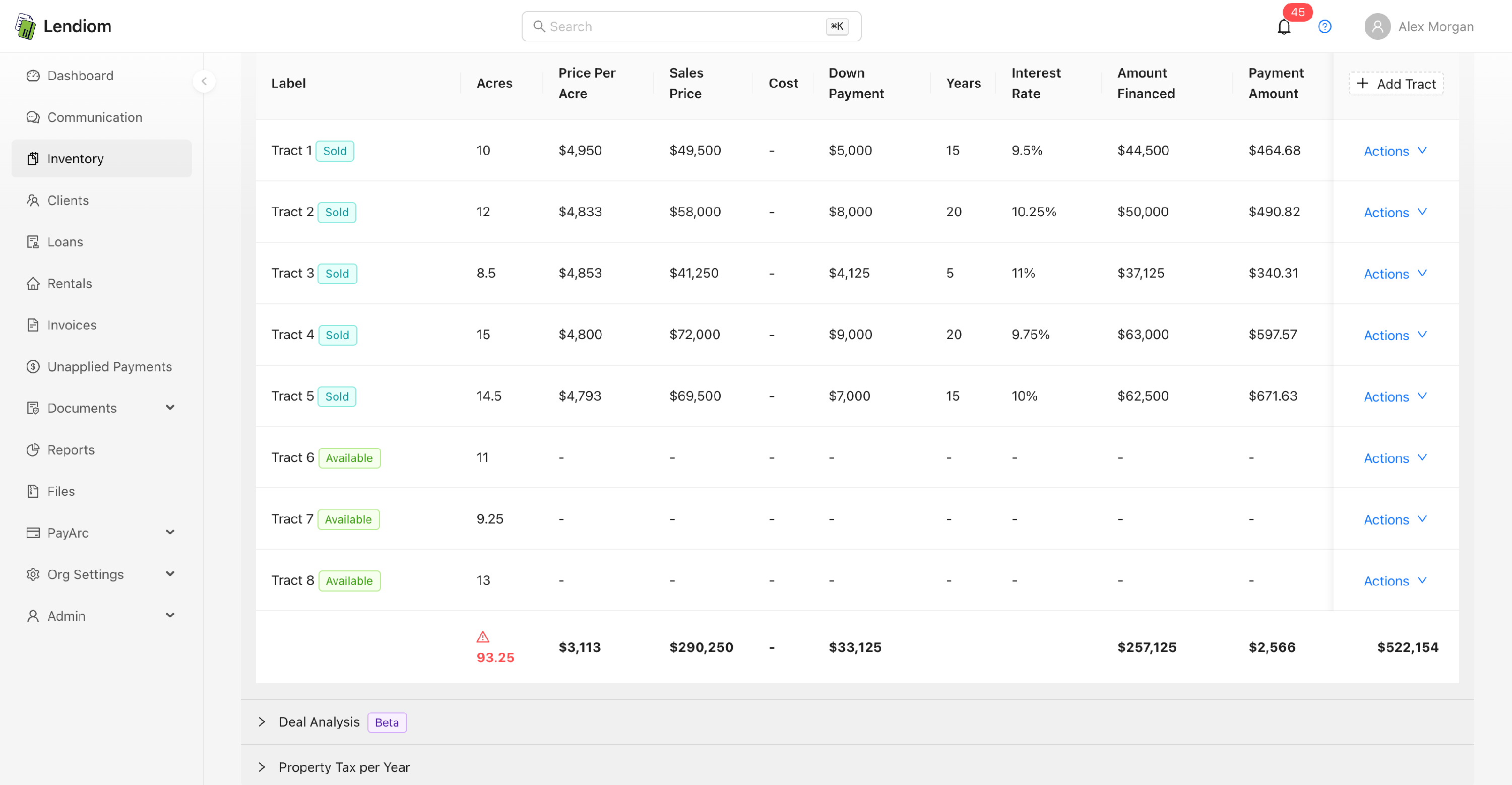
3. Add the tracts and units
Open the inventory you created and use Add Tract on the tracts table. Label, number, acres, and status are required. Owner, parcel numbers, development cost, and property tax reimbursement eligibility are optional at this stage and editable later.
For a subdivision of near-identical tracts, fill one out completely, then use the Duplicate action on its row. Duplicating copies every field except the identity, owner, and loan links, so you change the label, number, and acreage and move on.
4. Create the clients and their entities
A client is the account. The people on it are entities. Go to Clients → New and give the client a display name, type (Individual, Family, or Company), status, preferred language, and the payment methods they're allowed to use online. Use the Add button on the Client Entities divider to attach each person before saving. An Individual client accepts exactly one entity; Family and Company clients accept several.
For each entity, enter the name, birth date, email address, phone number with Is Cellular set correctly, and the mailing address. For the taxpayer identification number, choose the type first, since the field stays locked until you do, then enter the number. The value is encrypted at rest, and viewing it later requires confirming your password.
Lendiom assigns the account number automatically when the client saves. That number is what the borrower will type into Lendiom Pay, so there's nothing to carry over from your old system.
5. Enter the loans
Each loan goes through the six-step wizard at Loans → New: What & Who, Terms, How Much, Communication, Escrow, and Review. Creating a Loan walks through every field.
Two things matter for migrated loans. First, on the How Much step, switch New or Existing Loan to Existing . That reveals the paid-to-date fields you gathered above, and it tells Lendiom to build the amortization schedule from the remaining principal rather than from the original terms. Second, every loan saves in Draft status regardless of what you do. The status selector on step one is disabled on purpose.
Draft is where you want them for now. Draft loans are invisible to the buyer, accrue no late fees, and send no messages, so you can enter the whole portfolio and correct mistakes without a borrower noticing. Check the generated schedule on the Review step before saving: the next payment number, the next due date, and the interest and principal split should match your records. If you excluded partial payments, record them now with Adding a Transaction.
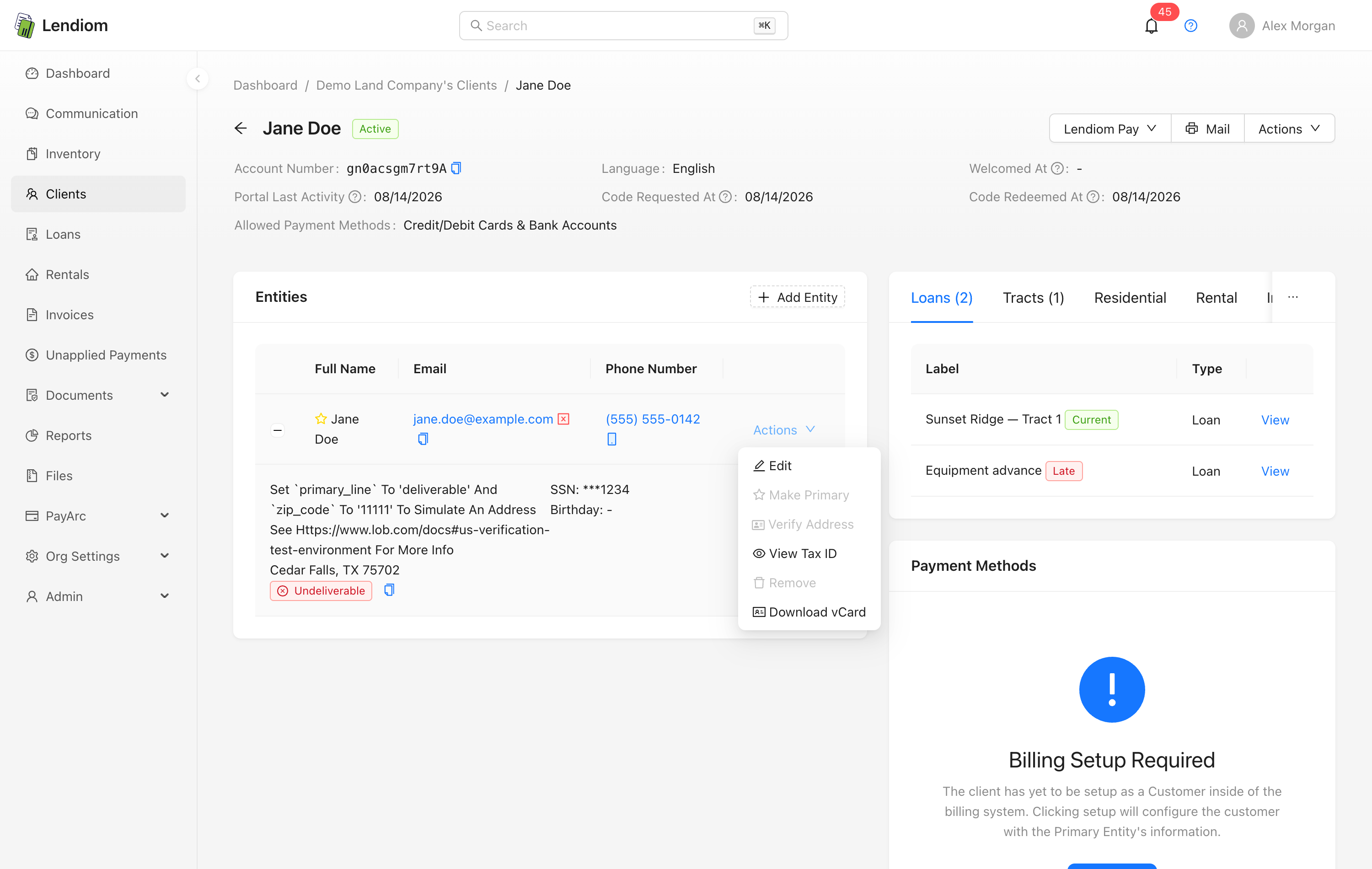
6. Verify addresses and tax identifiers
Do this before you activate anything. On each client page, open the entity's action menu and choose Verify Address. Lendiom checks the address against USPS and marks it verified or flags it as undeliverable. The action is disabled when there's no address on file or when the address is already verified.
A missing address, an unverified address, an undeliverable address, or a missing taxpayer identification number will each block a 1098 at filing time. E-Filing 1098 INTs covers all four, and is worth reading now rather than in January.
7. Turn on online payments
Online payments are configured per loan, not per organization, through Actions → Online Payments on the loan. The fields only appear once your PayArc merchant application is complete; until then the modal shows a notice pointing at the merchant page instead.
Register first if you haven't: Onboarding: PayArc. Then work through Setting Up Online Payments for the statement descriptor, the ACH and card fee assignments, and the auto-draft switch.
8. Activate the loans and invite the borrowers
Move each loan out of Draft from its Action Center. See Loan Status for what each status changes.
Activating a Draft loan is also the moment the borrower gets invited. When your communication portal setup is complete and that client has never been welcomed, Lendiom sends the Lendiom Pay welcome text automatically as the loan goes active. There's no separate button, and it fires once per client, not once per loan.
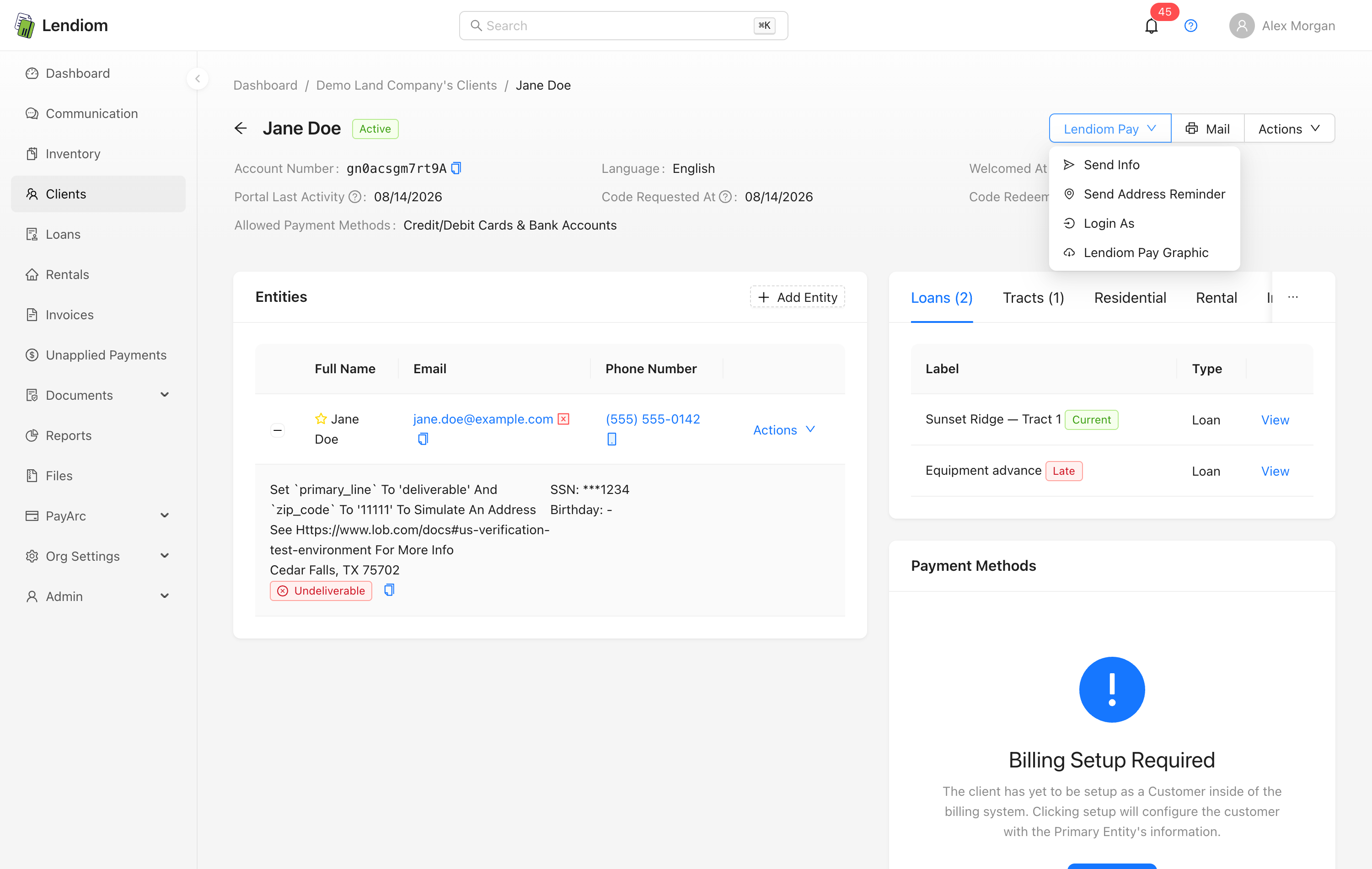
To send it yourself, or resend it, use Lendiom Pay → Send Info on the client page. That menu is disabled until the primary entity has a cell phone number, an email address, and a mailing address; the tooltip names whatever is missing. Lendiom Pay Graphic downloads a printable card with the account number. What the borrower sees from there's in How do I log into Lendiom Pay?.
Two things that save time later
Keep your old identifiers. Create text fields under Organization Settings → Custom Fields for the legacy loan or file number and fill them in as you go. Custom fields exist for clients, loans, tracts, inventories, and rentals, and they can be dropped into generated documents as tokens. Reconciling against your old system is far easier when both numbers live on the same record.
Migrate in slices. Finish one development end to end, meaning inventory, tracts, clients, loans and activation, before starting the next. A mistake caught on development one costs you five records; caught on development six, it costs you all of them.
Renting rather than financing? The equivalent path runs through Creating a Rental, and steps 1 through 4 are identical.