
E-Filing Form 1098s in Lendiom
As of version 0.46.0 of Lendiom, you can now e-file your Form 1098s. This uses all of the data you have entered into Lendiom, aggregates it into one report, and then e-files it with the government (through a third-party partner of ours). As of 2024, the price per form is $10.00, which includes e-filing and mailing the form to the client via USPS.
Form 1098 Overview
For more details about what Form 1098 is and when you need to e-file it, please consult the IRS website: https://www.irs.gov/instructions/i1098
Per IRS guidelines, 1098 forms are not required for recipients who have paid less than $600 in mortgage interest. If you'd like to file these forms voluntarily, please contact our support team for assistance.
Reviewing Data
Before filing the Form 1098s, you will first need to review the information carefully to ensure it is complete and accurate. If any details are missing or incorrect, update them before proceeding.
To do this, navigate to the Reports page. On this page, there is a new tab titled 1098 INTs .
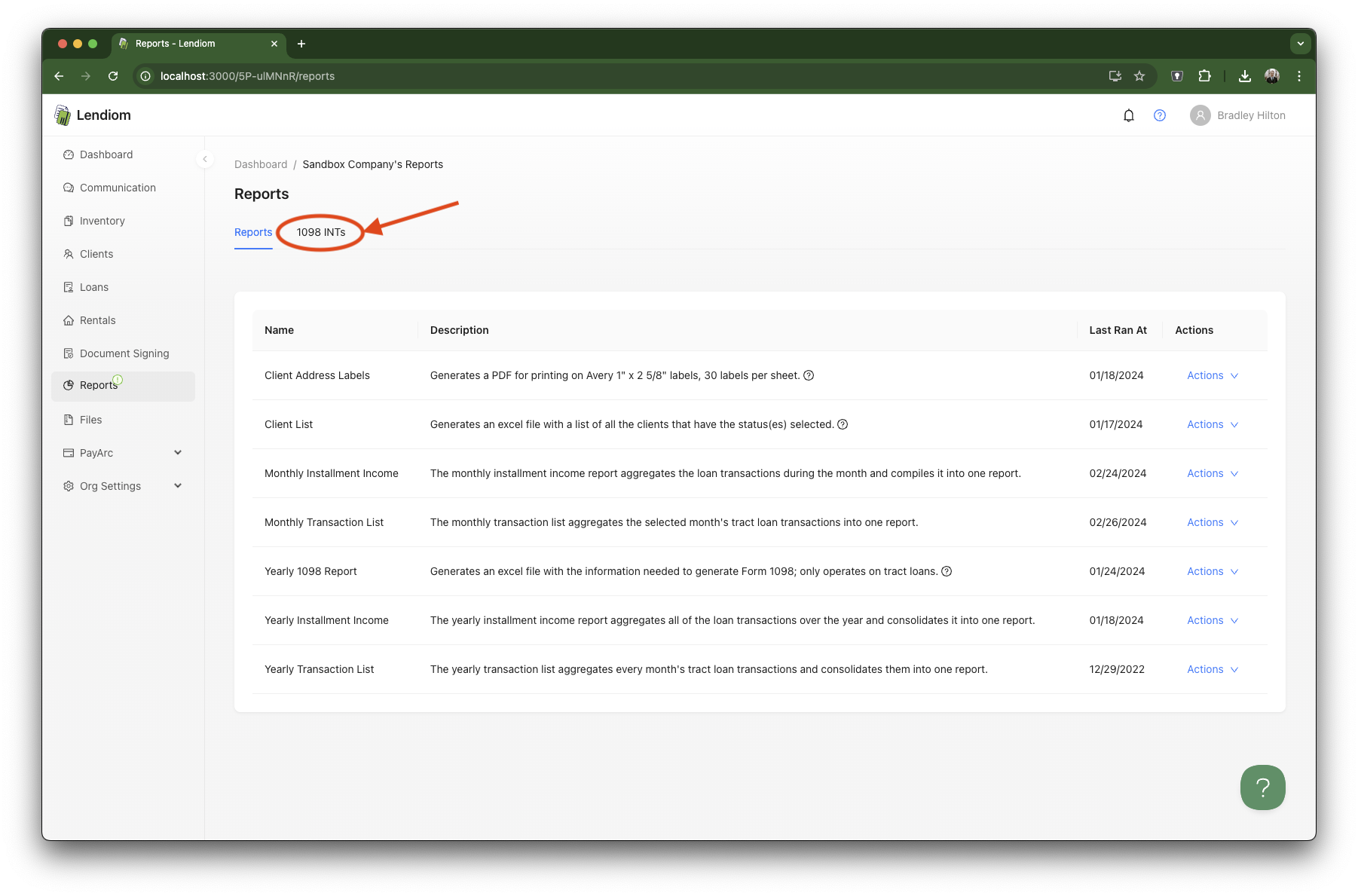
Once you click on that, you will be presented with the Form 1098 Overview.
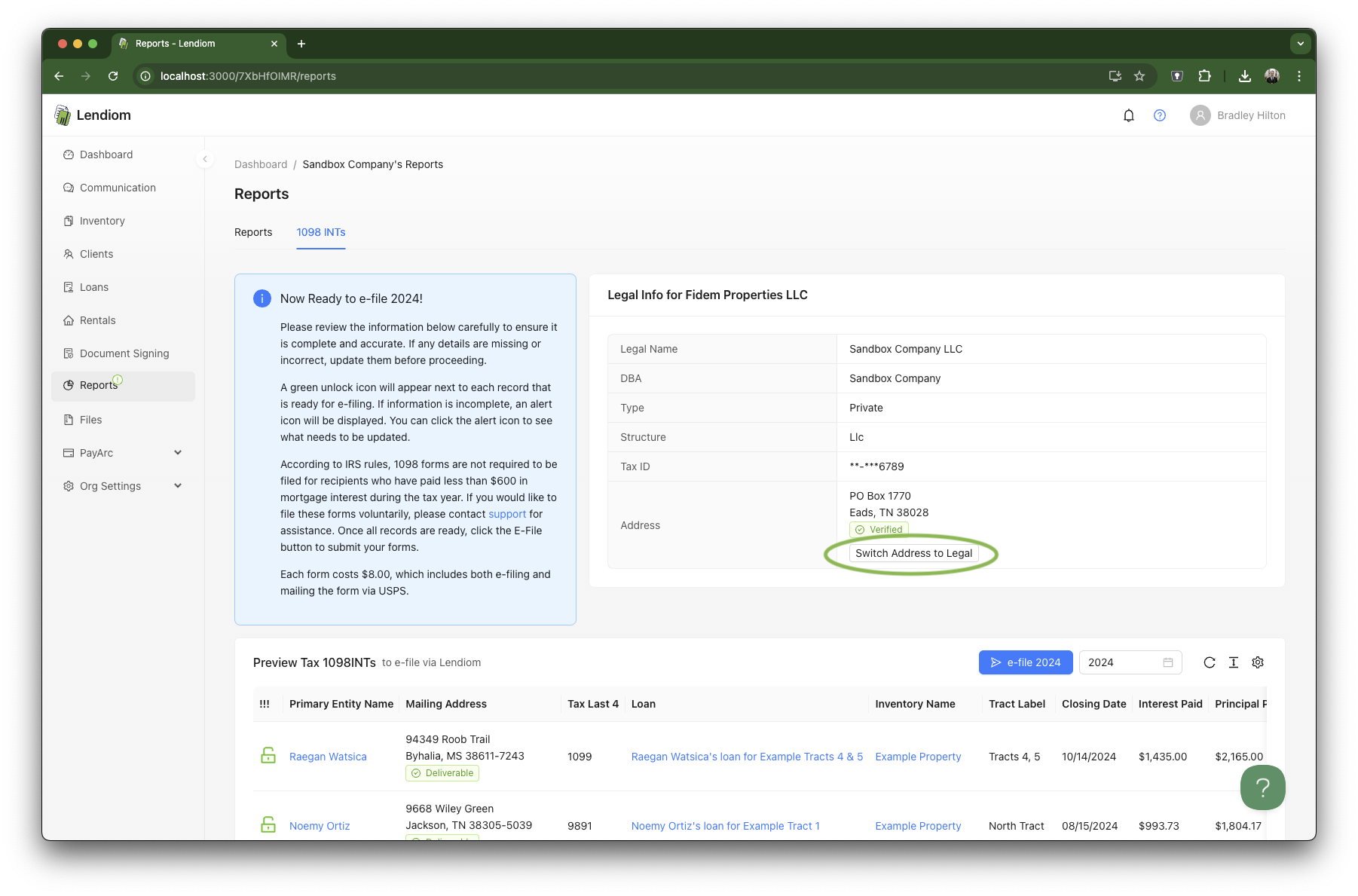
Please take the time to review the information carefully to ensure it is complete and accurate. If any details are missing or incorrect, update them before proceeding. If you do not see a green unlock icon next to a row, you can click on the icon, and it will show you what is missing. The information it may highlight includes:
- Mailing address missing
- Address not verified
- Address not deliverable
- Tax ID (SSN, ITIN, EIN) missing
Fixing Missing Address
To fix the missing address, please edit the primary entity on the client and input their mailing address.
Fixing Non-Verified Address
To resolve this problem, click on the client. Then, on the client page, click on the Actions button and then click on the Verify Address button. If the address can be verified with the USPS, it will show a message stating the address is verified. However, if an address cannot be verified, you will need to communicate with the client to get an accurate and updated address from them.
Resolving Undeliverable Address
The only way to resolve an undeliverable address is to change the client's address to a completely different address. An address can be marked as undeliverable whenever the USPS does not deliver mail to that specific address. As such, tax forms cannot be delivered. We recommend communicating with the client to get an updated address, then trying again.
Adding Missing Tax ID
To add the client's tax information, whether a Social Security Number (SSN), Individual Tax Identification Number (ITIN), or Employer Identification Number (EIN), you will need to obtain it from the client (via a Form W-9) and add it to Lendiom.
Missing Legal Information
If you have yet to provide your legal information to Lendiom, we will request it. Please provide all of your legal information, including the legal address registered with the state. This will ensure a smooth process moving forward. All tax identification numbers are encrypted and require a password to decrypt on the UI.
Changing the Address on 1098s
By default, Lendiom will use the legal address we have on file. If you would like to switch the address to your mailing address, click on the Switch Address to Mailing link under the address listed. You will also have the opportunity to select the address when you click e-file.
Choosing Which Loans to File
You do not have to file every loan at once. Each row has a checkbox, and every loan that has not been filed yet starts checked. Uncheck any you want to hold back and they stay on the page for later; only the checked rows are validated and filed.
Common reasons to leave a loan out:
- A repossessed buyer with no tax ID on file whom you cannot reach.
- A loan you brought into Lendiom part way through the year whose interest history is not complete.
- A client you have decided not to file for.
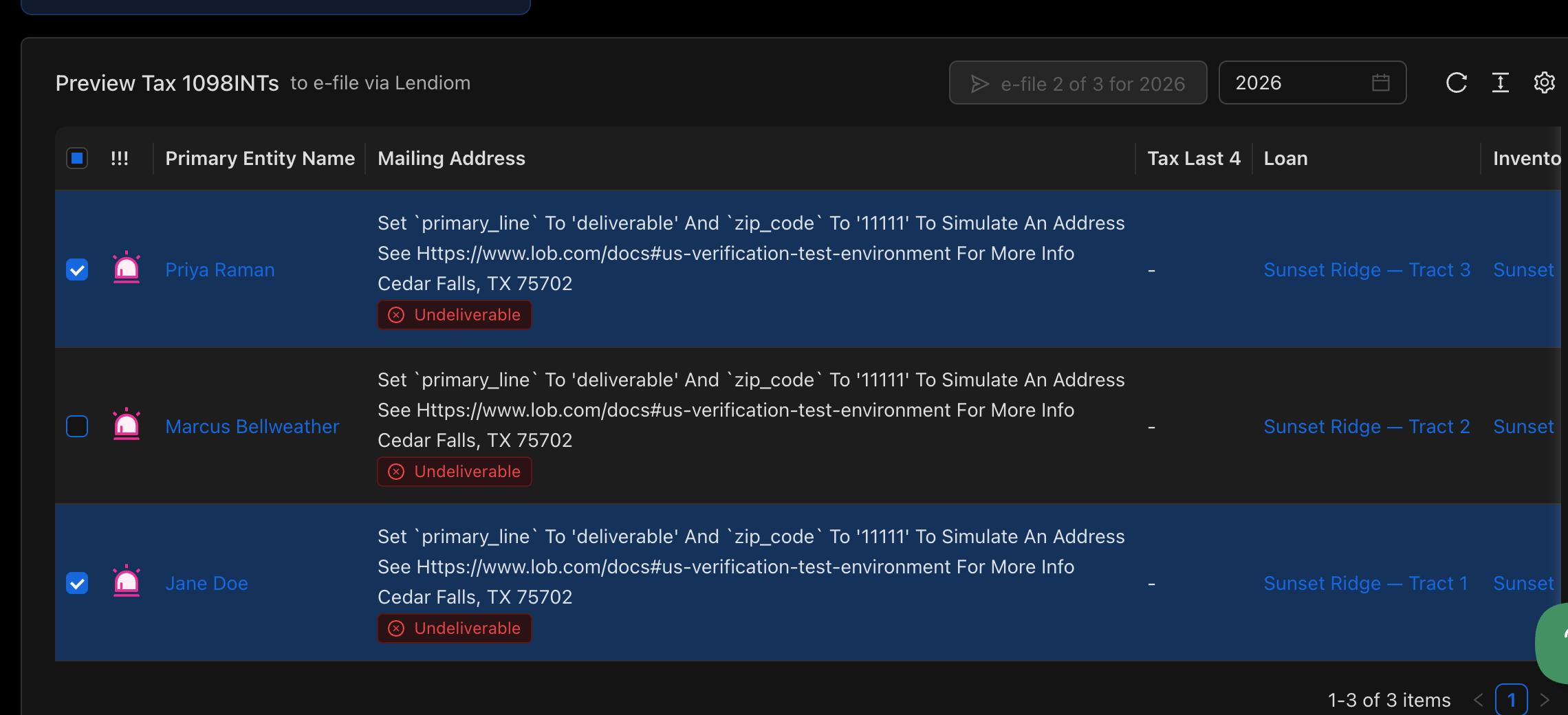
The e-file button says how many loans are checked, for example e-file 2 of 3 for 2025 , and it only requires the checked rows to be ready. A row with an alert icon can stay unchecked while you file the others.
E-Filing
Once you have reviewed the checked rows and triple-checked their accuracy, you are ready to e-file via Lendiom. 🎉
To e-file, click the e-file button. This will bring up a window that states you agree to our Terms of Service and confirm you have verified the accuracy of the information to submit. Once you click the Confirm & E-File button, yet another window will come up.
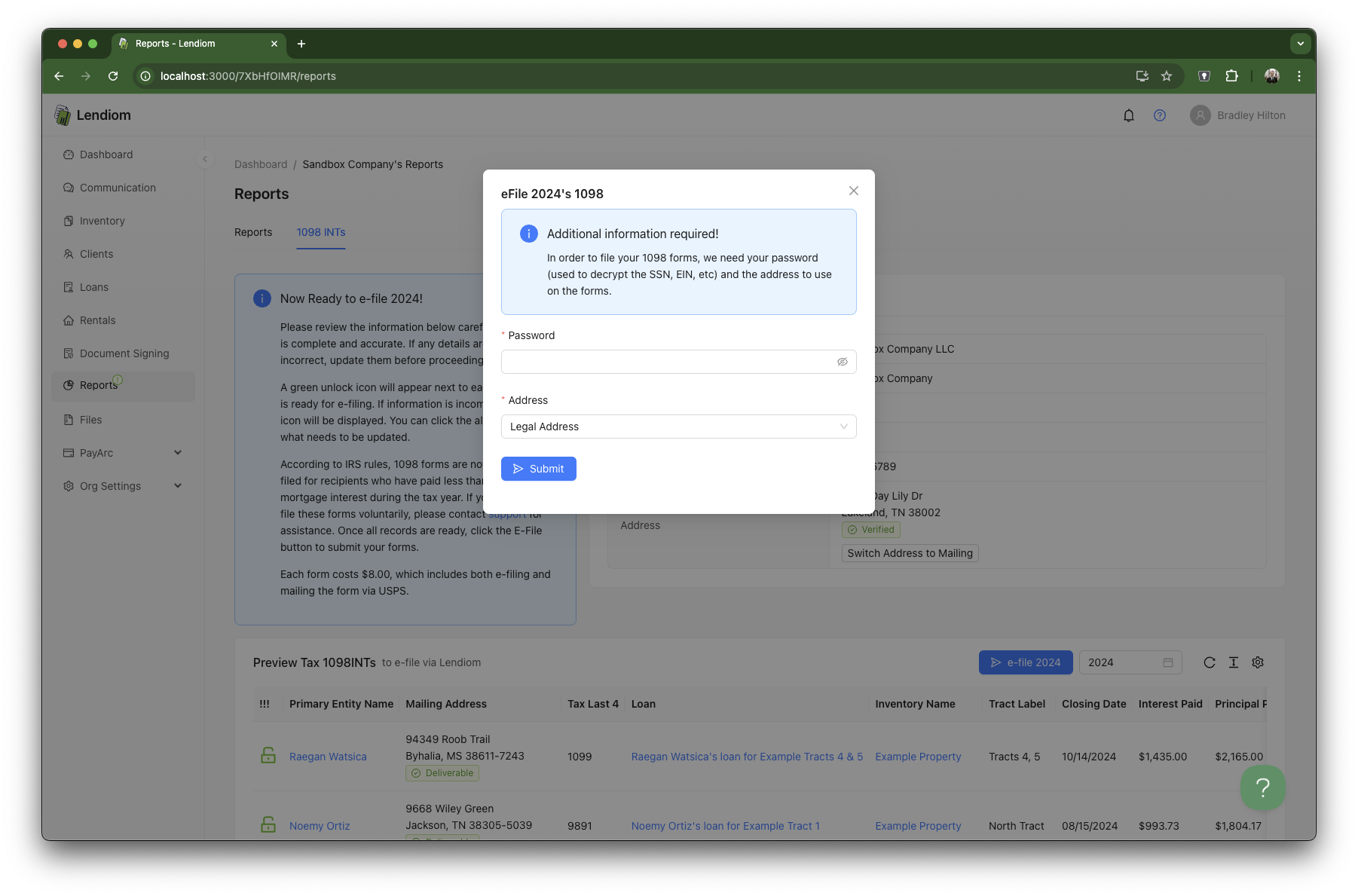
This final confirmation window requires you to input your password. This enables Lendiom to decrypt all of the tax identification numbers and acts as a security measure to ensure that you are who you say you are.
Additionally, it requires you to select the address you want on the 1098s.
Once you hit submit, it might take a minute or two, depending on how many 1098s you are e-filing.
And that's it! You will have successfully e-filed your 1098s!! 🎉
Filing the Rest Later
If you left some loans unchecked, the page keeps track. The banner reports how many of the year's loans have been filed, filed rows are locked with a green padlock and a Download button, and the remaining loans start checked so you can file them whenever they are ready. A loan that has already been filed cannot be filed a second time.
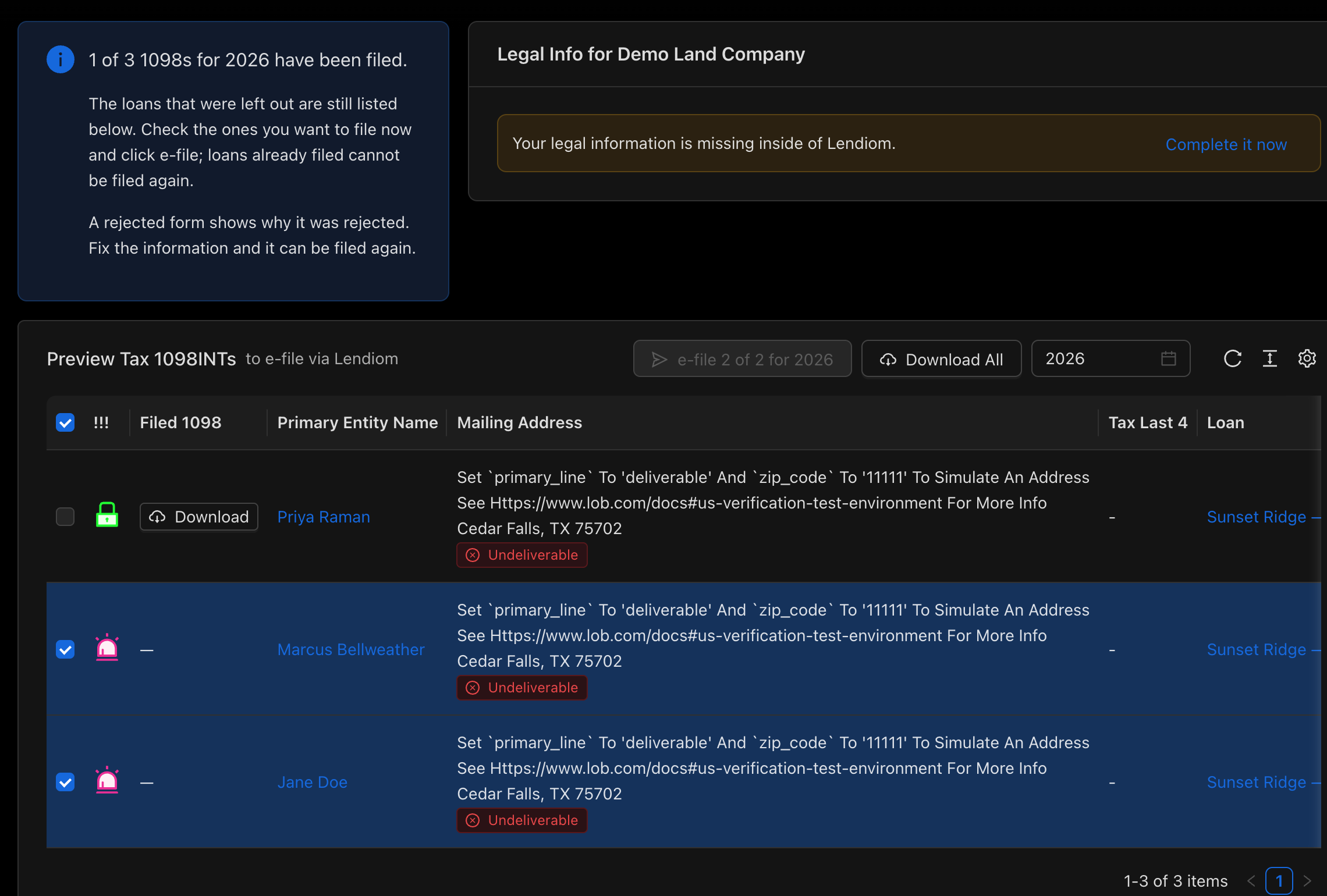
If the filing provider rejects a form, its row shows a red Rejected tag with the reason on hover. Fix the information it points at, check the row, and e-file it again.
Downloading Filed Forms
Once at least one form has been accepted, a Filed 1098 column appears with a Download button on each filed row, and a Download All button in the toolbar gives you a zip of every filed form for the year.
Support
If you run into any problems or have any questions, please reach out to us! support@lendiom.com