
Adding and Managing Clients and Contacts
Every loan, rental, invoice, letter, and text message in Lendiom points at a client. Getting that record right, with the right people on it, the right phone number and a verified address, is what keeps the rest of the system from stalling later.
Clients and entities
A client is the account, the thing a loan or a rental unit is assigned to. An entity is a person (or a company member) inside that client. A client must have at least one entity, and one of them is marked the primary entity.
| Lives on the client | Lives on an entity |
|---|---|
| Display name, account number, status, type | Title, first / middle / last name |
| Preferred language, allowed payment methods | Email and its verification status |
| Notes, files, timeline, letters, custom fields | Phone number and whether it's cellular |
| Lendiom Pay portal activity | Address, tax identifier, birth date |
The type you pick controls how many entities the client can hold.
| Type | Meaning |
|---|---|
| Individual | Exactly one entity. You can't add a second, or switch an existing client to Individual while it still has more than one. |
| Family | Two or more people who share the account: spouses, co-borrowers, family members. |
| Company | A business, with company members as entities. |
| Unidentified | Assigned by Lendiom. See Cleaning up "Unknown" clients. |
Status is separate from type.
| Status | What it does |
|---|---|
| Active | Normal. Included in a mass message scoped to active clients. |
| Inactive | Blocks sign-in to Lendiom Pay. Marking a loan as Repossessed sets the client to Inactive automatically. |
| Prospect | Not yet a customer. Included in a mass message scoped to prospective clients. |
| Do Not Contact | For clients who are deceased or who have asked not to be contacted. |
| Unknown | Assigned by Lendiom, not selectable by you. |
Change status from the actions menu on any row of the Clients list, or from Edit on the client page.
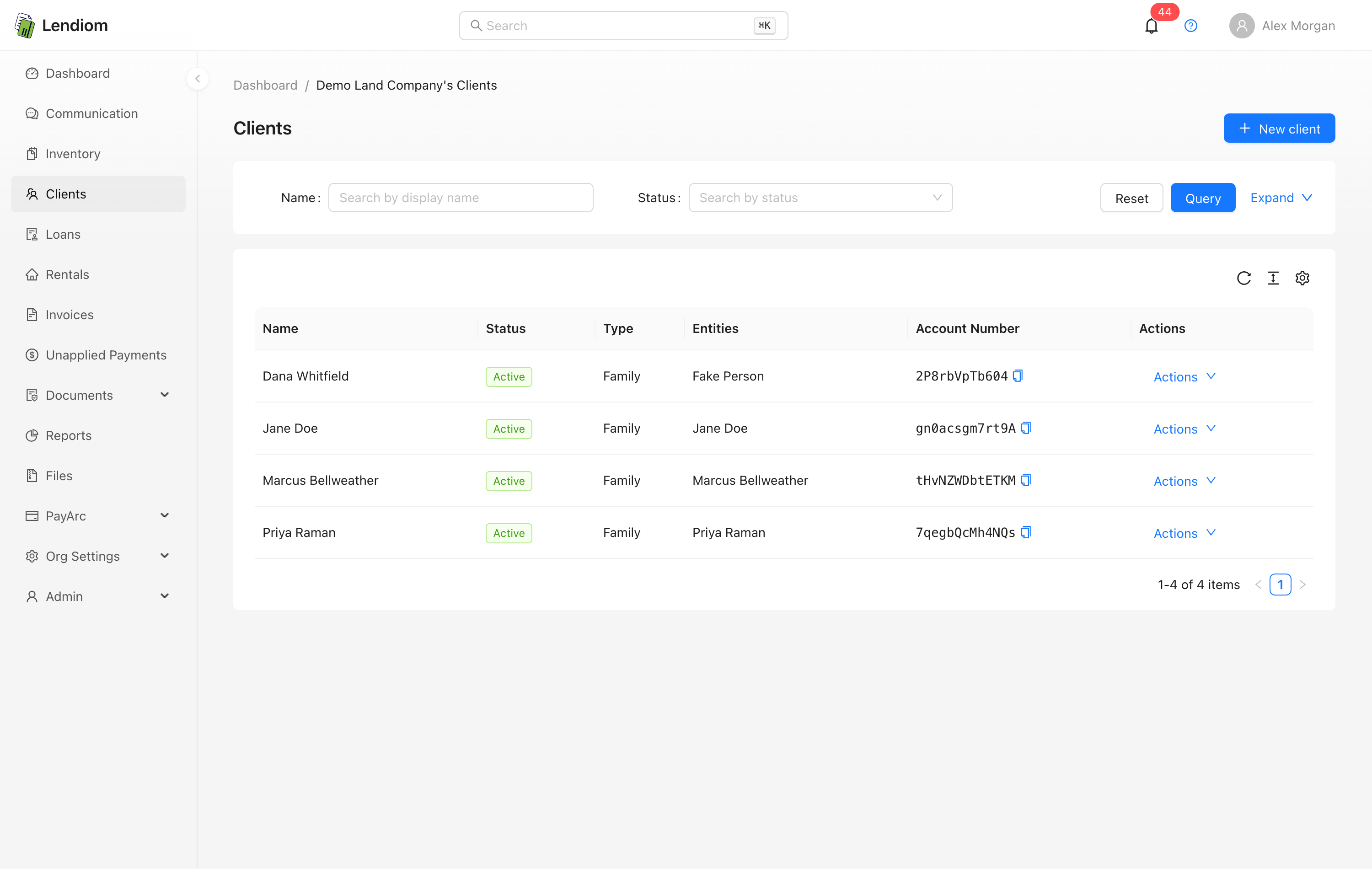
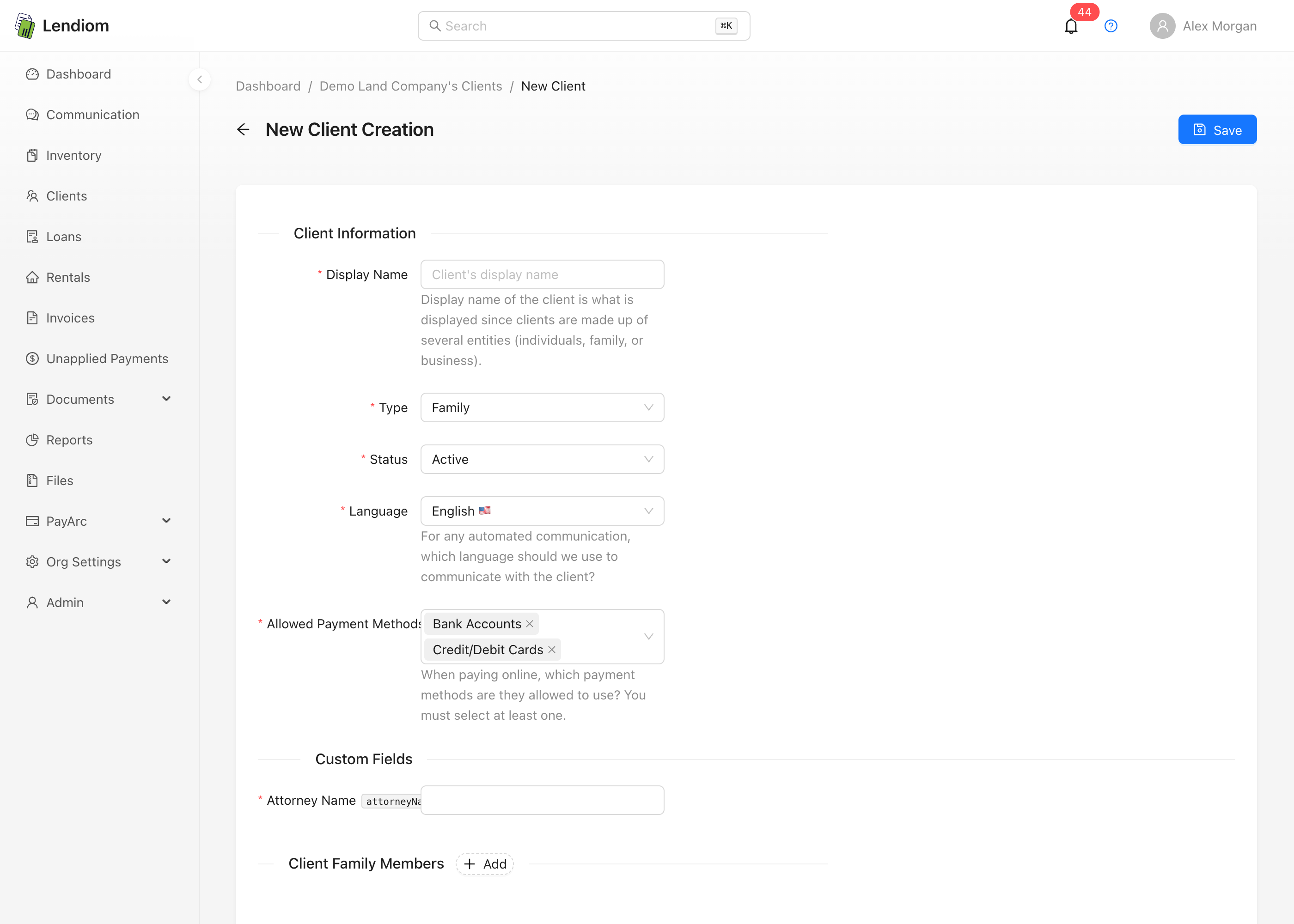
Creating a client
- Go to Clients and click New client.
- Enter the Display Name, the label shown everywhere in Lendiom, since a client can be several people.
- Pick the Type and Status.
- Pick the Language, English or Spanish. Automated messages and emails go out in it.
- Pick the Allowed Payment Methods: Bank Accounts, Credit/Debit Cards, or both. At least one is required, and it governs what the client may add when paying online.
- Fill in any custom fields your organization has defined.
- Under the entity divider, click Add and fill in each person. The label follows the type you chose: "Individual", "Family Members", or "Company Members".
- Click Save.
Lendiom generates the account number for you, and the first entity you added becomes the primary entity.
The save fails if the client has no entities, if an Individual client has anything other than exactly one entity, or if no payment method is selected.
Quick create
Anywhere you pick a client, whether marking a tract as sold, assigning a rental unit, or starting a conversation, a small + button sits next to the picker. It asks only for a first name, last name, mobile number, and language, then creates a Family client with one entity and both payment methods allowed.
Adding and editing entities
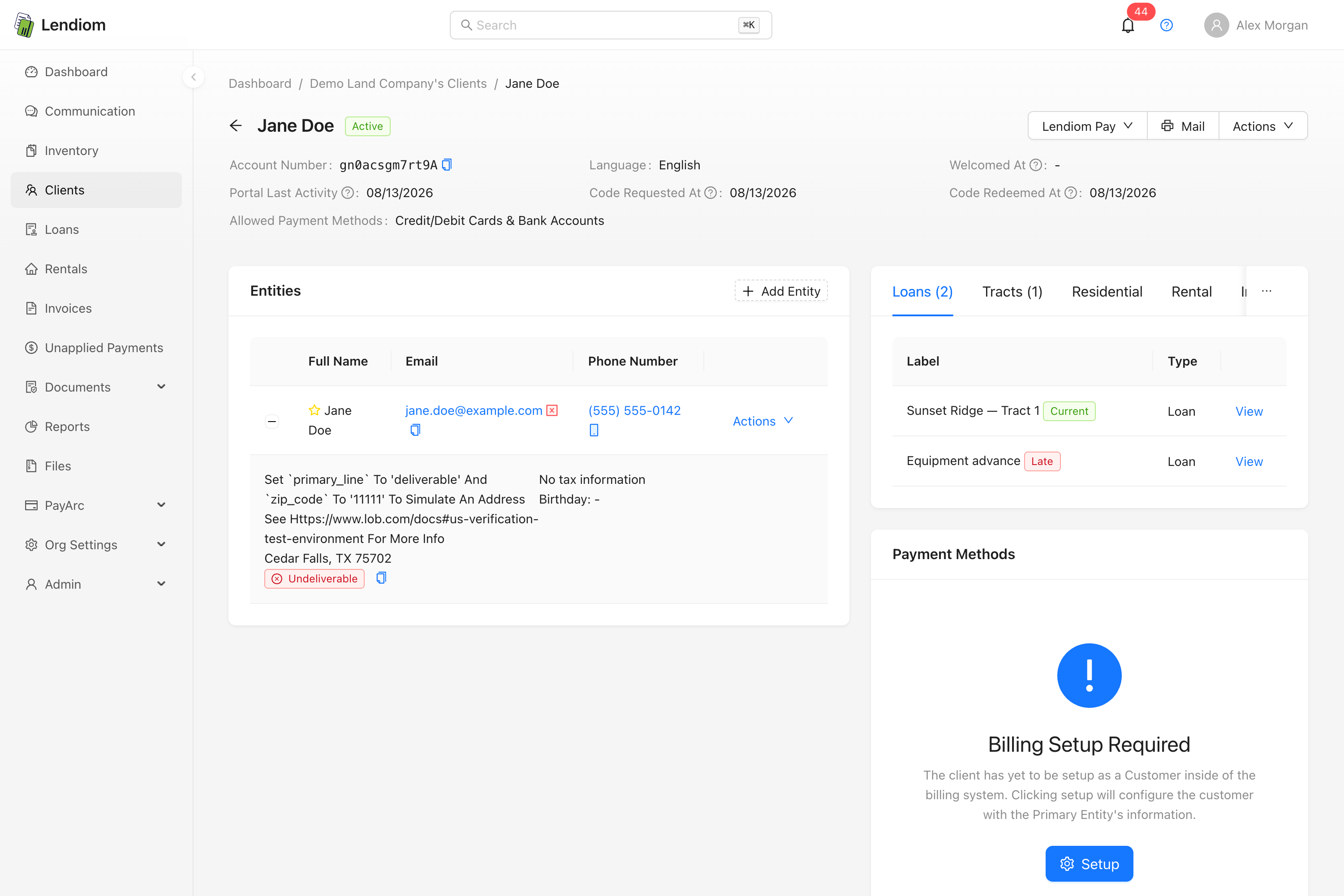
On the client page, the Entities card lists everyone on the account. Add Entity opens the same drawer used during creation; each row's actions menu gives you Edit, Make Primary, Verify Address, View Tax ID, Remove, and Download vCard.
The drawer holds one phone number and one address per entity. First and last name are required; everything else is optional.
- The primary entity is starred in the list. You can't remove it. Make someone else primary first.
- Make Primary and Remove are hidden on Individual clients, which have only one entity.
- Changing an entity's email resets its verification: the address goes back to Unverified until the client confirms it.
Contact details that drive messaging and mail
Not every field on an entity is used the same way. These are the ones that decide whether a message actually goes out.
| Field | What depends on it |
|---|---|
| Phone number + Is Cellular | Text messages. Lendiom refuses to send if the first number on the entity isn't marked cellular, or has opted out of messages. |
| Emails from Lendiom Pay and automated notices. | |
| Address | Physical letters, and the address block printed on generated documents. |
| Primary entity | Automated messages, generated letters, and Lendiom Pay access codes default to this person. |
Your organization's Send Automated Messages To preference decides whether automated reminders and welcome flows go only to the primary entity or to every entity under the client.
If your organization has messaging enabled, Lendiom checks each number against the carrier in the background the first time it sees it, sets the Is Cellular flag to match, and writes a note on the client saying what it found, including the caller-ID name when one is available. Invalid numbers are flagged the same way.
A number is only checked once. If you correct Is Cellular by hand afterwards your choice stands, and editing the client later doesn't send the number back for another lookup or clear an opt-out.
Phone numbers Lendiom accepts
Lendiom stores US and Canadian numbers only. Whatever you type is saved in one standard form, so (555) 123-4567, 555-123-4567 and +15551234567 all end up identical. A number from outside the North American Numbering Plan, or one with too many or too few digits, is refused with phone number must be a US or Canadian number and the client isn't saved until you correct or remove it. The same check runs when you approve a phone change a borrower submitted from Lendiom Pay.
Imports are the exception: a number an import can't use is dropped and the borrower is still created without it, so an import never fails on a bad number alone.
Numbers already in Lendiom before this rule were cleaned up once. Anything that could be reshaped was kept, and anything that could not was removed, leaving a system note on that client naming the number so you can collect a current one, plus a one-time notification to everyone who can edit clients.
Email has its own status. A verified address shows a green check next to it in the Entities table; a blocked address shows a red icon. Lendiom blocks an address when the mail provider reports it as undeliverable, whether a hard bounce, a spam complaint, or a manual suppression, and writes a system note on the client explaining why. A blocked address receives nothing until it's updated and re-verified.
Addresses and address verification
An address that has only been typed in is marked Unverified, and Lendiom won't mail to it. Choose Verify Address from the entity's actions menu. Lendiom sends it to the mail provider, standardizes the casing, fills in the ZIP+4, and records a deliverability result.
| Result | Meaning |
|---|---|
| Deliverable | Mail can be sent. |
| Undeliverable | The address doesn't exist as written. Nothing can be mailed. |
| Missing unit | The apartment or suite number is absent. |
| Incorrect unit | The apartment or suite number doesn't match the building. |
Addresses entered when you first create a client are verified automatically as part of the save.
Verify Address is disabled once an address is verified, and when there's no address at all. Editing a verified address to something different clears the verification, and you have to verify it again before you can mail to it.
When you send a letter, the recipient list flags entities with no address or an undeliverable one and refuses to accept them.
Tax identifiers
Each entity can store one taxpayer identification number: an SSN, an EIN, or an ITIN. Pick the type first, since the field stays locked until you do, and the input then formats itself for that type.
Only the last four digits are stored on the entity record, which is what the expanded row shows as SSN: ***1234 . The full number is encrypted and kept in a separate secure store.
To see the whole number, choose View Tax ID from the entity's actions menu and confirm your own password. To change one that is already saved, click the lock icon beside the field in the edit drawer and confirm your password there.
Revealing a tax identifier needs the client secrets permission, which is separate from the permission to view clients. Without it the reveal control is hidden entirely. The property-manager role, for example, can manage clients but can't see tax IDs. See Roles and Permissions.
Removing an entity deletes its stored tax identifier along with it.
Everything a client has paid
The Transactions tab on the client page lists every transaction that client has, across all of their loans, rentals and invoices, newest first. It's one place to answer "what has this buyer actually paid us?" without opening each contract in turn.
Each row shows the date, what it was for (the loan, rental or invoice it belongs to), the type, the status, the total the buyer paid including all fees, and the amount that reached you after processing fees. The Type and Status column headers filter the list the same way the dashboard does.
Download CSV exports every row, not just the page you're looking at or the filters you have applied. The button is disabled when the client has no transactions.
The tab only appears for roles with read permission on loan transactions, so a role that can't see money won't see it at all.
Notes, files, and history
The client page carries three record-keeping sections, each gated by its own permission:
- Notes: free-form notes your team writes, plus system notes Lendiom generates for blocked emails and phone-number validation results. System notes can't be edited, only deleted.
- Files: a folder browser for documents that belong to the client rather than to a specific loan.
- Timeline: the history of what happened on this client.
The notes card also carries a Letters tab for physical mail sent to this client, and an SMS tab pointing to the Communication Portal, where conversations now live.
Cleaning up "Unknown" clients
When a text arrives from a number Lendiom doesn't recognize, it doesn't drop the message. It creates a placeholder so the conversation has somewhere to live: a client whose display name is the phone number, with type Unidentified and status Unknown, holding one entity named after the number with the last name "Unknown".
These show up in your Clients list. There are three ways to resolve one.
A new person. Open the client, choose Edit, and set a real display name, type, status, language, and payment methods. Unidentified and Unknown appear in that form but are disabled, so you have to pick real values. Then edit the entity to replace the placeholder name and add an email and address.
An existing client texting from a new number. Add the number to the correct entity on the real client, then delete the placeholder. Don't leave both in place: inbound messages match an entity by phone number, and when two entities hold the same number the most recently created one wins.
A wrong number or spam. Delete the placeholder client.
Deleting a client
Open the client, then choose Delete from the actions menu in the top right.
A client can only be deleted when it has no associated items. If it's attached to a loan, a rental, a tract, or a unit, the confirmation counts the items in the way and refuses to proceed. Remove those first.
Deleting is permanent and cascades: every entity on the client, the notes attached to those entities, their stored tax identifiers, and all conversations, calls, and text messages tied to the client.
Deleting a client that has ever had a loan invalidates the reports and tax documents that referenced it. Prefer setting the status to Inactive over deleting a real customer.