
Invoices Overview
Introduction
The Invoices feature allows you to create, send, and collect payments for one-time or outstanding charges.
Invoices are standalone records that can be used for things such as:
- Service charges
- Property-related fees
- Adjustments
- Miscellaneous billing
- Any amount owed outside of scheduled loan payments
Invoices can be delivered to clients via email, SMS, or physical mail, and can be paid online through Lendiom Pay.
Invoice Statuses
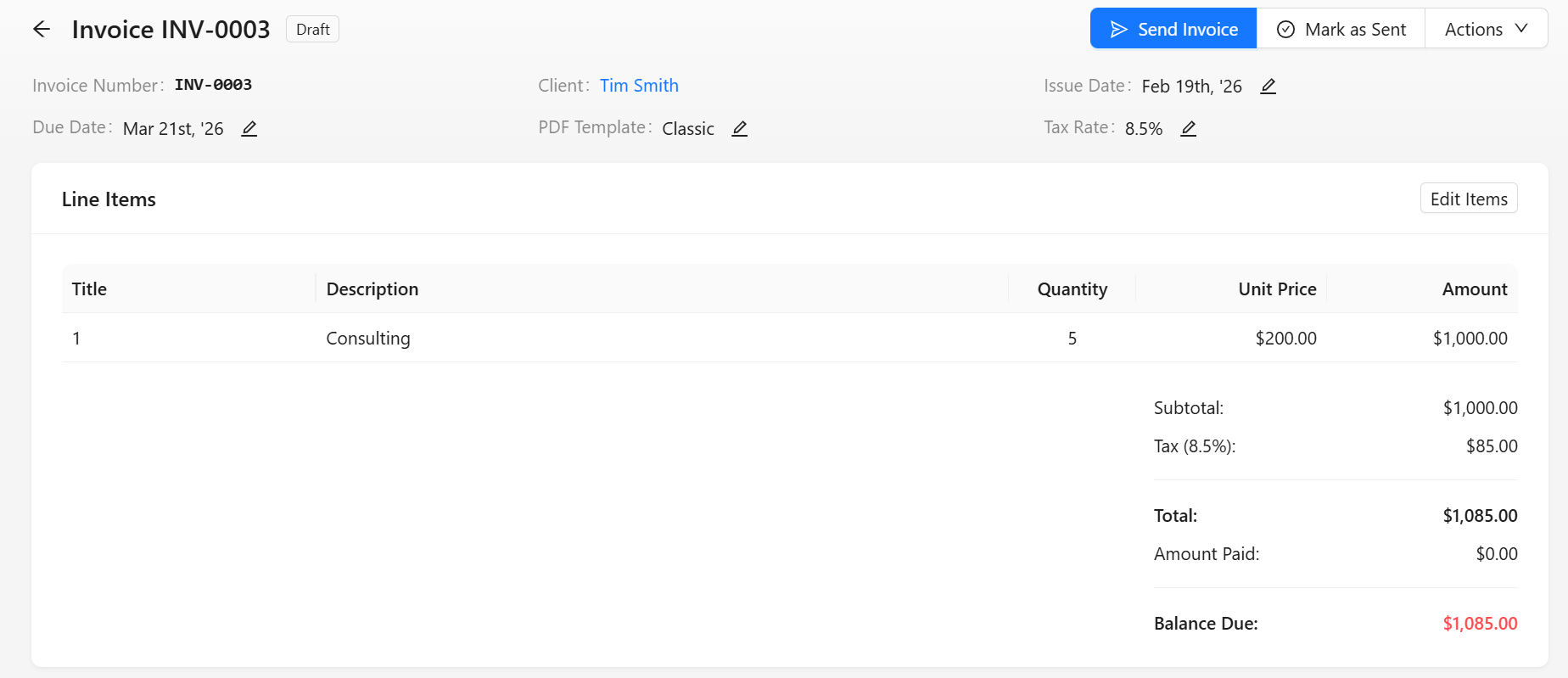
Invoices move through the following statuses:
- Draft - The invoice has been created but not sent.
- Sent - The invoice has been delivered to the client.
- Viewed - The client has opened the invoice.
- Partially Paid - A portion of the invoice has been paid.
- Payment Pending - An online payment has been made and is settling with the payment processor.
- Paid - The invoice has been paid in full.
- Overdue - The due date has passed and a balance remains.
- Cancelled - The invoice has been voided.
Invoice statuses update automatically based on payments and due dates.
Creating an Invoice
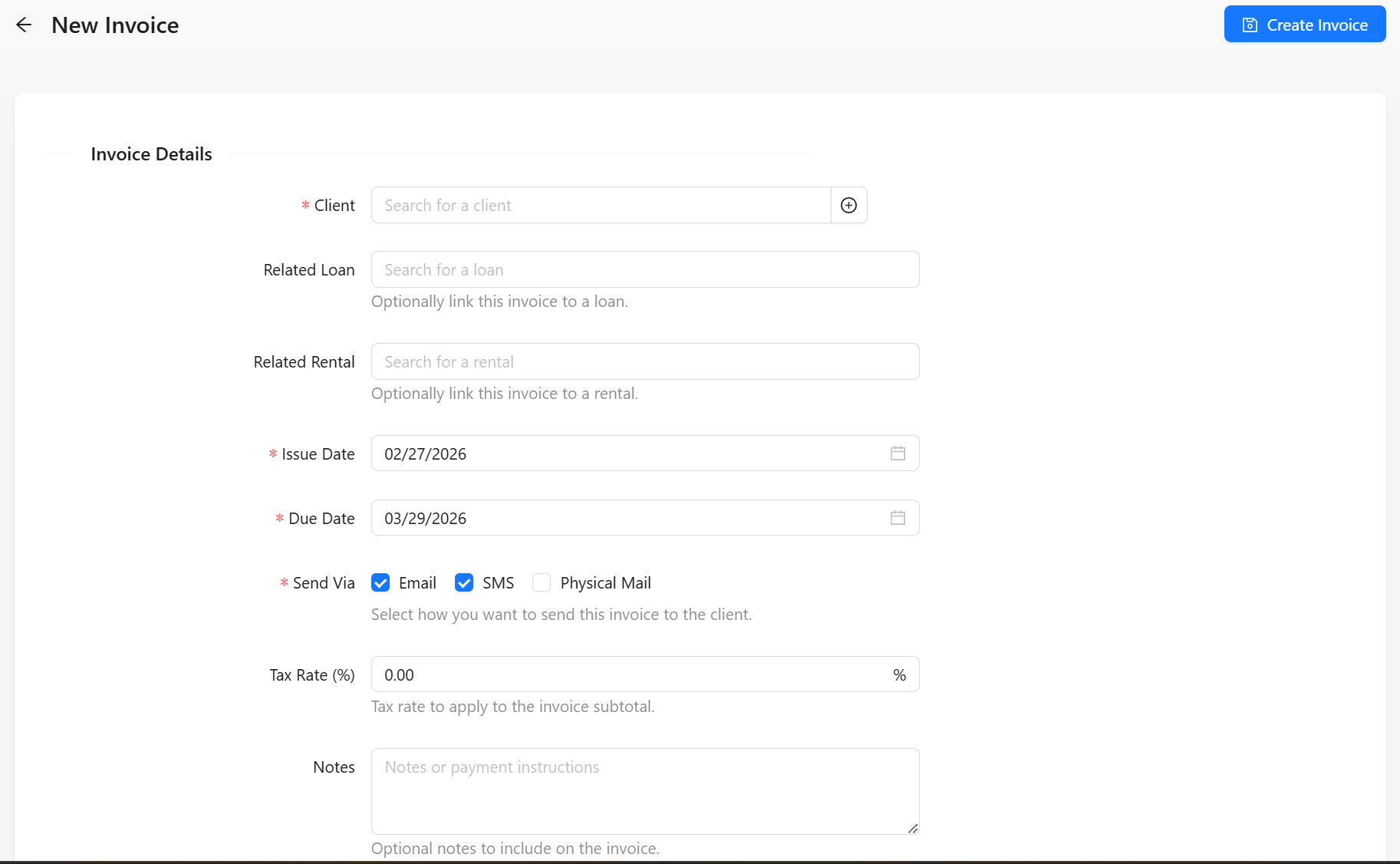
To create an invoice:
- Navigate to the Invoices section.
- Click Create Invoice.
- Enter the required details:
- Client
- Issue date
- Due date
- Line items
- Tax (if applicable)
- Save the invoice as Draft or send it to the client.
Each invoice is assigned a unique invoice number automatically.
Adding Line Items
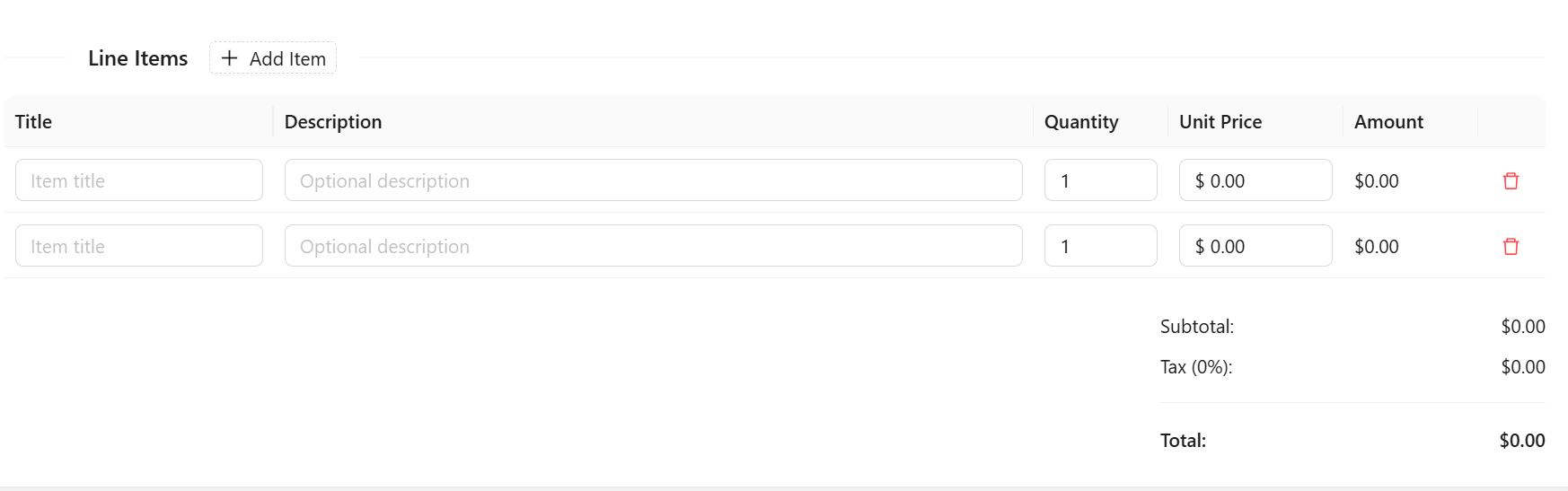
Invoices are built using line items.
Each line item includes:
- Title
- Description
- Quantity
- Unit price
- Amount
The system automatically calculates:
- Subtotal
- Tax (if applicable)
- Total amount
Line items can only be edited while the invoice is in Draft status.
Sending an Invoice
Invoices can be delivered through multiple methods:
- Email (includes a PDF attachment)
- SMS
- Physical Mail
When an invoice is sent:
- The status changes to Sent
- The client receives a notification
- The invoice becomes visible in the client portal
If the client opens the invoice, the status updates to Viewed automatically.
PDF Templates
Invoice PDFs can use one of three built-in styles:
- Classic - The default clean, modern layout.
- Modern Blue - A bold, blue-accented professional layout.
- Minimal - An elegant layout with minimal styling.
The template can be selected when creating an invoice and changed later from the invoice's details.
To set a default for all new invoices, open Invoice Settings (the gear icon on the Invoices page) and choose a PDF Template. Individual invoices can still override the default.
Online Payments
Invoices can be paid online through Lendiom Pay.
To allow online payments:
- Online payments must be enabled for the invoice.
- Your organization must be set up with PayArc.
Clients can:
- Select a saved payment method
- Enter a custom amount (if partial payments are allowed)
- Authorize the payment
Online payments are available for invoices in the following statuses:
- Sent
- Viewed
- Partially Paid
- Overdue
Draft, Paid, and Cancelled invoices cannot be paid online. While an invoice is in Payment Pending, the client portal shows a "Payment Settling" notice with the pending amount and date instead of the payment option; any remaining balance can be paid once that payment settles.
Partial Payments
Invoices support partial payments when enabled.
If a client pays less than the total amount:
- The invoice status becomes Partially Paid
- The remaining balance is updated automatically
- The client may make additional payments until the invoice is fully paid. While an earlier online payment is still settling (bank/ACH payments can take several business days), additional online payments wait until it completes.
Once the balance reaches zero:
- The status updates to Paid
- The paid date is recorded
Manual Payments
If you receive payment outside of Lendiom Pay, you can manually record it.
Supported manual payment methods include:
- Credit/Debit Card
- Cash
- Check
- Bank Transfer
- Wire
- Money order
- Cashier’s check
- Zelle
- Cash App
- PayPal
- Venmo
- Barter
- Other
When a payment is recorded:
- The invoice balance updates automatically
- The status recalculates accordingly
Overdue Invoices
If an invoice is not paid by its due date:
- The status automatically changes to Overdue (invoices that are already Partially Paid keep that status, but still receive overdue reminders)
- Reminder notifications may be sent (if configured)
You can configure:
- Reminder notifications before the due date
- Notifications on the due date
- Overdue reminders at specific intervals
- Maximum reminder limits
This helps ensure clients are notified.
Cancelling an Invoice
An invoice can be cancelled if:
- It has received no payments (even a single partial payment blocks cancellation)
- There is no pending payment in process
Once cancelled:
- The status becomes Cancelled
- No further payments can be made
- The invoice remains in records for reference
Invoices that have received payment cannot be cancelled.
Audit Trail
Each invoice includes a detailed audit trail.
The audit log tracks:
- Creation
- Updates
- Delivery events
- Status changes
- Payments
- Cancellations
PDF Downloads
Invoices can be downloaded as a PDF at any time.
PDFs include:
- Organization details
- Client details
- Line items
- Tax breakdown
- Payment summary
- Current payment status
- Online payment link (if enabled)
Multiple template styles are available.
Client Experience
In the client portal, clients can:
- View all invoices
- See balance due
- Download PDFs
- Make online payments (if enabled)
When a client opens an invoice, it is automatically marked as Viewed.
If online payments are enabled, they can pay directly from the invoice page.