
Plans, Pricing and Your Trial
Lendiom sells one product. The only choice you make at sign-up is how often you want to be invoiced for it, and whether you have a coupon. This page covers what the plans include, how the 31-day trial starts and ends, how coupons are checked, and what the active-loan tier on your Loans page is counting.
The steps for getting through the sign-up wizard itself are in Setting Up Your Business.
The Two Plans
Both plans unlock exactly the same software. Monthly and yearly are billing intervals, not feature tiers.
| Plan | What the sign-up card shows | How often you are invoiced |
|---|---|---|
| Monthly | $50 per month | Every month |
| Yearly | $600 per year, twelve months at the same rate | Once a year |
Yearly isn't a discount. It's the monthly rate multiplied by twelve, collected in one invoice instead of twelve.
Every plan card lists the same included amounts:
| Included | Amount |
|---|---|
| Trial | 31 days |
| Inventories | Unlimited |
| Clients | Unlimited |
| Active loans | 100 |
| Data storage | 50GB |
The $50 and $600 figures on the plan cards are fixed in the app. They aren't read from the payment processor. When you click Start Trial, Lendiom looks the plan up in the payment processor by its price ID and creates your subscription against that price. Nothing compares the two numbers, so the card is a display value, not the authority: if the price in the payment processor were ever changed, the cards would still read $50 and $600 while the amount actually charged came from the processor. If a plan has been retired, sign-up stops with deactivated plan selected rather than charging you something unexpected.
Add-ons are priced separately and ride on top of whichever interval you chose, so a monthly organization gets the monthly add-on price and a yearly organization the yearly one. Usage charges (snail mail, texts, calls) are separate again and are covered in Your Invoices and Communication Portal Costs.
The 31-Day Trial
The trial is 31 days long and starts when you click Start Trial at the end of the sign-up wizard, not when you first create the organization. Lendiom posts an in-app notification when it starts, naming your exact end date, and Org Settings → Billing shows a Trial Ends At row for the whole trial.
A chargeable payment method has to be on file before the trial can begin. A card works. So does a bank account that verifies instantly through your bank login. A bank account that would need micro-deposits can't start a trial, because it can't be charged yet. See Managing the Payment Method That Pays Lendiom.
Nothing is limited during the trial. Creating, editing, exporting and reporting all work exactly as they will after it converts.
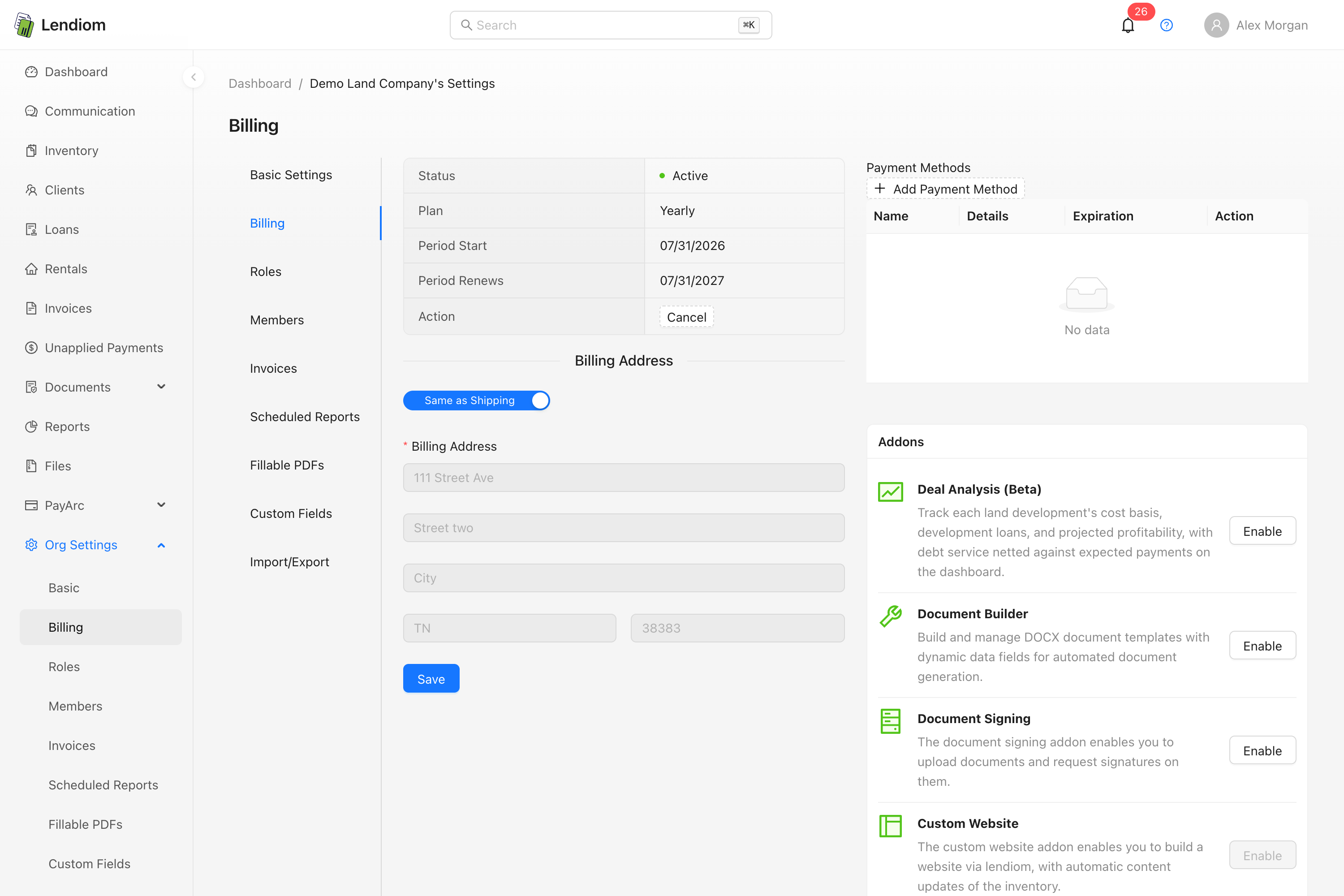
If you cancel before the trial ends, you are not charged. Cancel from Org Settings → Billing; the confirmation asks for a written reason of more than 20 characters, and the subscription then ends on the date already shown as your trial end. The full walkthrough and the list of what stops working is in Canceling a Subscription.
When the Trial Ends
Lendiom emails the organization before the trial runs out, so a converting trial shouldn't be a surprise.
On the last day, the payment processor charges your default payment method and the subscription moves to active. Everyone on your team with billing permission gets a notification that the subscription is now active. That first charge is prorated: your billing cycle is anchored to the first of the month, so you pay for the days between the end of the trial and the next first. The anchoring rule and its worked example live in Billing Cycles.
If the charge fails, the subscription goes past due. Lendiom emails you and posts a medium-priority in-app notification, and the app tightens up until the payment succeeds:
| While past due | Effect |
|---|---|
| Creating, editing and deleting records | Blocked |
| Reading your existing data | Still works |
| Reports and data exports | Run and Download are greyed out. See Exporting Your Data |
| Your buyers signing in to Lendiom Pay | Blocked, including the "text me my account number" recovery |
Fix it by updating the payment method in Org Settings → Billing. If the retries run out and the subscription lands on canceled, the Action row in the Billing tab changes to a Contact Support button. Restarting from that point isn't self-serve.
Coupons
The coupon field sits at the bottom of the plan selection step. That's the only place in Lendiom where a coupon can be entered. There's no coupon field after sign-up, and a coupon can't be applied to a subscription that already exists.
Coupons are checked twice:
- As you type. About a second after you stop typing, Lendiom looks the code up. A good code turns the field green, shows the coupon's name underneath it, and re-prices both plan cards with the original price struck through and a footnote saying how long the discount lasts. A bad or switched-off code turns the field red with Invalid coupon. and keeps Start Trial disabled until you clear or correct it.
- When you click Start Trial. The code is fetched again and re-checked. A coupon that was switched off between typing it and clicking is rejected with out dated coupon provided, and no subscription is created.
How the discount is applied depends on the plan you picked:
| Plan | Coupon type | How it lands |
|---|---|---|
| Monthly | Any | Attached to the subscription and applied each month for the coupon's duration, or for as long as you stay subscribed if it never expires |
| Yearly | Never expires | Attached to the subscription, so every yearly invoice is discounted |
| Yearly | Limited duration, percentage off | Converted to a one-time credit on your account, worth that percentage off the monthly rate for the number of months the coupon covers |
A fixed-dollar coupon on the yearly plan
The credit Lendiom writes for a limited-duration coupon on the yearly plan is calculated from the percentage off. A coupon that takes a fixed dollar amount off instead will still re-price the yearly card in the wizard, but it produces no credit. If your code is a dollar amount and it doesn't say it never expires, choose the monthly plan or email support@lendiom.com before you start the trial.
The Active-Loan Tier
Your plan covers 100 active loans. The Loans page shows a five-step progress bar for how full your current tier is; hover it and the popover reads Current tier usage for [your organization's name]. Each tier allows for 100 active loans. This number updates nightly., with your own organization's name in place of the bracketed part. Loan Status carries the pricing for going past a tier.
The count comes from a job that runs once a night across every organization with a live subscription. Two things follow from that: a brand-new organization has no bar until the first nightly run, and a loan you closed this morning is still in today's number.
The bar also disappears whenever your organization can't create records, the same billing-status check that governs the Add Loan button. An organization that is past due or canceled sees no bar at all, even though its count is still there.
Only loans are counted. Rentals aren't part of this number at all.
| Status | Counted as active? |
|---|---|
| Pending, Current, Grace Period, Late, In Default, Defaulted, Pending Payoff | Yes |
| A legacy loan with no status set | Yes |
| Draft | Tallied in its own bucket, separate from the active number behind the bar |
| Paid Off, Repossessed, Canceled, Refinanced, Inactive | No |
The bar is a record, not a gate. Lendiom doesn't stop you from creating loan number 101, and nothing on this bar bills you on its own. If you're consistently over a tier, talk to support so your subscription matches your book.
Changing Plans After Sign-Up
There's no self-serve plan change. In Org Settings → Billing the Plan row is read-only text, and the only actions the Billing tab offers on the subscription are Cancel and, if a cancellation is already scheduled, Reactivate.
To move between monthly and yearly, email support@lendiom.com. Don't cancel and sign up again to switch: canceling takes your organization down the path described above, and coming back from a canceled subscription needs support anyway.
What you can change yourself is the add-on mix and the payment method on file. Both need the wildcard billing permission on your role, not read. See Roles and Permissions.